🚀 Quick Summary
- Download and extract Turbo C++ 3.0 directly to your C: drive.
- Use TC.EXE (not the shortcut) to run the compiler.
- Windows 7 64-bit users must use DOSBox to emulate a 32-bit environment.
Note for users of Windows 7 64-bit: You need to use DOSBox to emulate a 32-bit system because this compiler is not compatible with 64-bit. Install DOSBox, and mount your C: drive, or whichever drive you installed Turbo C in.
The download page for Turbo C++ 3.0 was one of the most popular pages in poochycat.com, my previous domain which had already expired.
(The rest of this post must be viewed to find the download links and installation instructions for turbo c++ 3.0 windows 7 free download)
The Download Link:
Turbo C++ Compiler version 3.0 (Download from MediaFire) (unknown, 920 hits)
That’s the C program compiler I used to use during my early college terms.
Installation Instructions
Last Updated: November 2011
- Download the archive from the link(s) provided somewhere at the top of this post.
- Unzip it and place the contents of the archive into a folder inside your Drive C. (e.g., C:tcpp3)
- Please observe:
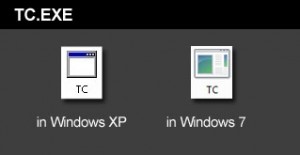
The above is the TC.EXE file that you MUST run.
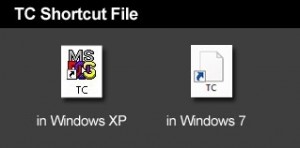
The above is the TC Shortcut file, don’t use it.The compiler is the file named TC.EXE. Don’t confuse it with the TC shortcut! Simply double click on that and the compiler will run.
- Just before you type your C program code, please make sure you have the correct path for the INCLUDE Directory and LIBRARY Directory. You can check by clicking on Options -> Directories…
- The path for the INCLUDE Directory must be C:YourFolderINCLUDE. For example, C:tcpp3INCLUDE. The file you downloaded uses tcpp3 as folder name, which is why I’m using the same folder name in my example. Please make sure you specify the correct path to the INCLUDE folder, this is crucial, or else it you would get errors. The INCLUDE folder should directly under tcpp3 folder, and tcpp3 folder is directly under your drive C folder.
- And the path for the LIBRARY Directory must be C:YourFolderLIB, for example C:tcpp3LIB. Again, check if you have the correct path to the LIB folder.
- Remember to change the YourFolder into the name of the folder you are using for your Turbo C++.
- You can now test a C program code. First, select File from the menu and choose new. Copy the sample codes at the end of this blog entry.
- After copying the codes, select Run from the menu, and choose Run. There should be an output of Hello World on the screen. The codes worked for me, please copy them carefully.
Hello World sample code for testing in C language
|
1 2 3 4 5 6 7 8 9 10 |
#include <stdio.h> #include <conio.h> int main(){ clrscr(); printf(“Hello world!”); getch(); return 0; } |
Hello World sample code for testing in C++ language
|
1 2 3 4 5 6 7 |
#include main(){ cout << “Hello World!”; return 0; } |


