Turbo C++ 3.0 Windows 7 Free Download: Compiler with Instructions

Written by

on

in

, ,


🚀 Quick Summary

  • Download and extract Turbo C++ 3.0 directly to your C: drive.
  • Use TC.EXE (not the shortcut) to run the compiler.
  • Windows 7 64-bit users must use DOSBox to emulate a 32-bit environment.

Note for users of Windows 7 64-bit: You need to use DOSBox to emulate a 32-bit system because this compiler is not compatible with 64-bit. Install DOSBox, and mount your C: drive, or whichever drive you installed Turbo C in.

The download page for Turbo C++ 3.0 was one of the most popular pages in poochycat.com, my previous domain which had already expired.

(The rest of this post must be viewed to find the download links and installation instructions for turbo c++ 3.0 windows 7 free download)

Installation Instructions

Last Updated: November 2011

  1. Download the archive from the link(s) provided somewhere at the top of this post.
  2. Unzip it and place the contents of the archive into a folder inside your Drive C. (e.g., C:tcpp3)
  3. Please observe:
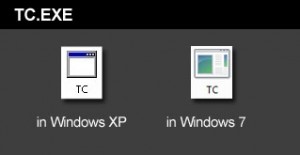
    Screenshot showing the TC.EXE executable file to run Turbo C++

    The above is the TC.EXE file that you MUST run.
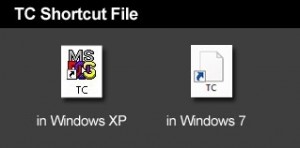
    Screenshot showing the incorrect TC shortcut file to avoid

    The above is the TC Shortcut file, don’t use it.

    The compiler is the file named TC.EXE. Don’t confuse it with the TC shortcut! Simply double click on that and the compiler will run.

  4. Just before you type your C program code, please make sure you have the correct path for the INCLUDE Directory and LIBRARY Directory. You can check by clicking on Options -> Directories…
  5. The path for the INCLUDE Directory must be C:YourFolderINCLUDE. For example, C:tcpp3INCLUDE. The file you downloaded uses tcpp3 as folder name, which is why I’m using the same folder name in my example. Please make sure you specify the correct path to the INCLUDE folder, this is crucial, or else it you would get errors. The INCLUDE folder should directly under tcpp3 folder, and tcpp3 folder is directly under your drive C folder.
  6. And the path for the LIBRARY Directory must be C:YourFolderLIB, for example C:tcpp3LIB. Again, check if you have the correct path to the LIB folder.
  7. Remember to change the YourFolder into the name of the folder you are using for your Turbo C++.
  8. You can now test a C program code. First, select File from the menu and choose new. Copy the sample codes at the end of this blog entry.
  9. After copying the codes, select Run from the menu, and choose Run. There should be an output of Hello World on the screen. The codes worked for me, please copy them carefully.

Hello World sample code for testing in C language

Hello World sample code for testing in C++ language


Related Posts

About the author:

Catzie Avatar

The homo sapiens behind these blog posts is “Catzie“

Explore my top blog posts:

Comments

261 responses to “Turbo C++ 3.0 Windows 7 Free Download: Compiler with Instructions”

  1. jinal Avatar
    jinal

    hey i m not able to install it plz help.after clicking tc.exe wat 2 do

    1. Ash Avatar
      Ash

      After clicking tc.exe a window ll appear …press “Run”..dats t…

  2. uttam Avatar
    uttam

    graphics out put is not worked in tc4 &tc3 some programm does not run plz reply me at :[email protected]

  3. mcbrel Avatar

    try
    #include
    #include
    main()
    {
    clrscr();

    cout<<"hello world";

  4. Eddiefurlol Avatar
    Eddiefurlol

    This version has Fucked up

  5. nagaraju Avatar
    nagaraju

    easy to learn

  6. sravan Avatar
    sravan

    #include
    #include
    void main()
    {
    printf(“sravan”);
    }

  7. sraj Avatar
    sraj

    working fine 4 me.. thnx

  8. asif khan Avatar

    very good working both c & c++ in my win7

    1. murtza ali Avatar
      murtza ali

      aslamoalyqum asif bhai… i want some help to u for this S/W…
      how to install this S/W 4 proper working… plz send me instalation detail on mail id [email protected]
      8899403703
      allah hafiz

  9. priyanka Avatar

    thankssssssssssssssssssssssssssssssssssssssss a lot………………

  10. MD. JAHIDDUL ISLAM Avatar
    MD. JAHIDDUL ISLAM

    very good site

  11. kar Avatar
    kar

    it not installing properly

  12. Sumon Avatar
    Sumon

    Hi! I dont know how can i installed Turbo c. Please help me.

  13. karthik Avatar
    karthik

    this hopefully worked for me…!!!
    thanx a lot *person*..!

  14. incognito Avatar

    yes! finally it works.

  15. shalvi ashok Avatar

    ossom its really very interesting

  16. Sialegi Avatar
    Sialegi

    gumagana naman ehhhh

  17. holla Avatar
    holla

    it has installed but is not accepting the header files even after setting the correct path in the directory option….
    please help me fast..

  18. SANJHOE Avatar
    SANJHOE

    yup, magrurun xa kapag marunong ka

    1. Anony Mousse Avatar
      Anony Mousse

      Allow me to quote what SANJHOE said in English:

      yup, it will run if you know how to do it correctly

      I have to agree with this guy. You should be able to do it correctly if you read all the notes and instructions thoroughly.

      1. z Avatar

        I’m getting a c0s.obj problem, the one predicted above. Tried to solve it acc. to the instructions, but no luck. Any helpful advice?

  19. shruti Avatar

    when i run the sample program it show me error of”unable to open include files and prototype error”
    pls help me to solve the errors

  20. Triveni Avatar
    Triveni

    It shows message that ‘pif’ file TC cant be run…It shows only black background just with courser blinking on it and nothing else…plz guide me…

Leave a Reply

Your email address will not be published. Required fields are marked *