Turbo C++ 3.0 Windows 7 Free Download: Compiler with Instructions

Written by

on

in

, ,


🚀 Quick Summary

  • Download and extract Turbo C++ 3.0 directly to your C: drive.
  • Use TC.EXE (not the shortcut) to run the compiler.
  • Windows 7 64-bit users must use DOSBox to emulate a 32-bit environment.

Note for users of Windows 7 64-bit: You need to use DOSBox to emulate a 32-bit system because this compiler is not compatible with 64-bit. Install DOSBox, and mount your C: drive, or whichever drive you installed Turbo C in.

The download page for Turbo C++ 3.0 was one of the most popular pages in poochycat.com, my previous domain which had already expired.

(The rest of this post must be viewed to find the download links and installation instructions for turbo c++ 3.0 windows 7 free download)

Installation Instructions

Last Updated: November 2011

  1. Download the archive from the link(s) provided somewhere at the top of this post.
  2. Unzip it and place the contents of the archive into a folder inside your Drive C. (e.g., C:tcpp3)
  3. Please observe:
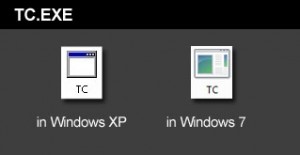
    Screenshot showing the TC.EXE executable file to run Turbo C++

    The above is the TC.EXE file that you MUST run.
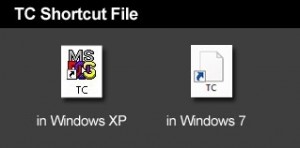
    Screenshot showing the incorrect TC shortcut file to avoid

    The above is the TC Shortcut file, don’t use it.

    The compiler is the file named TC.EXE. Don’t confuse it with the TC shortcut! Simply double click on that and the compiler will run.

  4. Just before you type your C program code, please make sure you have the correct path for the INCLUDE Directory and LIBRARY Directory. You can check by clicking on Options -> Directories…
  5. The path for the INCLUDE Directory must be C:YourFolderINCLUDE. For example, C:tcpp3INCLUDE. The file you downloaded uses tcpp3 as folder name, which is why I’m using the same folder name in my example. Please make sure you specify the correct path to the INCLUDE folder, this is crucial, or else it you would get errors. The INCLUDE folder should directly under tcpp3 folder, and tcpp3 folder is directly under your drive C folder.
  6. And the path for the LIBRARY Directory must be C:YourFolderLIB, for example C:tcpp3LIB. Again, check if you have the correct path to the LIB folder.
  7. Remember to change the YourFolder into the name of the folder you are using for your Turbo C++.
  8. You can now test a C program code. First, select File from the menu and choose new. Copy the sample codes at the end of this blog entry.
  9. After copying the codes, select Run from the menu, and choose Run. There should be an output of Hello World on the screen. The codes worked for me, please copy them carefully.

Hello World sample code for testing in C language

Hello World sample code for testing in C++ language


Related Posts

About the author:

Catzie Avatar

The homo sapiens behind these blog posts is “Catzie“

Explore my top blog posts:

Comments

261 responses to “Turbo C++ 3.0 Windows 7 Free Download: Compiler with Instructions”

  1. udichi Avatar
    udichi

    hey thanksssssssssss its working properly thankuuuu very much for helping me out.

    1. theresa Avatar

      how it works? pls help..

  2. Milad Avatar
    Milad

    Hey man thank you so much for letting me to download this

  3. Chin-Ai Avatar
    Chin-Ai

    how to download dis?

  4. smriti Avatar
    smriti

    dude its not working

  5. shiya Avatar

    when i go to run a program then errors are occured…as like as stdio.h file could not found,conio.h file could not found…

  6. Updater Avatar
    Updater

    Its working.
    Thanks

  7. ASISH Avatar
    ASISH

    Dude its nt wrkng

  8. keval Avatar
    keval

    hey, thanks for the detailed instructions. But it doesn’t install successfully.shows a number of errors on trying to run the TC.exe file,with the options like ignore,cancel. The dialog box is headed with 16-bit dos error.Please help

    1. joy Avatar
      joy

      just click the ignore

    2. kabirkhan Avatar
      kabirkhan

      hi friend how i download a program turbo C++ TC plz send some instructions.

  9. kate Avatar
    kate

    its noooooooooooooooot working need help

  10. Dinesh Avatar
    Dinesh

    After extracting the file, while copying it to c drive, plz change the folder name from tcp3 to TC in c drive, once done you wont get any error like unable to open stdio.h, conio.h, etc……….

    1. Dinesh Avatar
      Dinesh

      Change folder name from tcpp3 to TC

  11. joy Avatar
    joy

    It doesn’t work. This message appeared. “this screen does not support fullscreen mode. Choose close to terminate the application.” What should I do. Pls help.. My whole classmate will benefit here.Pls help!

    1. Catzie Avatar
      Catzie

      I never encountered this problem so I’m not sure what to do. Maybe try running the compiler in compatibility mode? Or trying running it in a different screen resolution (try Alt + enter)?

      1. JAVED Avatar

        GOOD WORK & THANX

  12. sreiada Avatar
    sreiada

    thanks a ton!!! couldn’t have done it without you!!!!

  13. joy Avatar
    joy

    catzie this is the error appeared when i try to run the program,
    1. unable to open include file “stdio.h”
    2. unable to open include file “conio.h”
    4. function “clrscr” should have a prototype
    5. function “printf” should have a prototype
    6. function “getch” should have a prototype

    pls help..thank you

    1. samrat Avatar
      samrat

      just simply change your folder name tcpp3 to TC then you wont get error

  14. joy Avatar
    joy

    these appeared when i try to run your example program
    #include
    #include
    int main(){
    clrscr();
    printf(“Hello world!”);
    getch();
    return 0;
    }

  15. joy Avatar
    joy

    main file: NONAME00.CCP
    compiling: EDITOR ->NONAME00.CCP

    LINES COMPILED: 6
    WARNINGS:0
    ERRORS: 5

    AVAILABLE MEMORY: 1901K

    what thus it mean? pls help

  16. joy Avatar
    joy

    Catzie

    Hi i already used the turbo C++ thanks just one more question pls. what should i do if the error is function ‘clrscr’ should have a prototype? and function ‘getch’ should have a prototype?

    pls help disregard my two previous question i already used the c++

    1. sandeep Avatar
      sandeep

      header file use kr joy error out ho jayegi

    2. Naseer Avatar
      Naseer

      u just type clrscr();

      and getch();

  17. theresa Avatar

    bkit ayaw maopen ng tc?

  18. mubashar Avatar
    mubashar

    linker error :unable to open file ‘GRAPHICS.LIB’
    what i do?plz help me

  19. RAVINDRA Avatar
    RAVINDRA

    its not working

Leave a Reply

Your email address will not be published. Required fields are marked *