Turbo C++ 3.0 Windows 7 Free Download: Compiler with Instructions

Written by

on

in

, ,


🚀 Quick Summary

  • Download and extract Turbo C++ 3.0 directly to your C: drive.
  • Use TC.EXE (not the shortcut) to run the compiler.
  • Windows 7 64-bit users must use DOSBox to emulate a 32-bit environment.

Note for users of Windows 7 64-bit: You need to use DOSBox to emulate a 32-bit system because this compiler is not compatible with 64-bit. Install DOSBox, and mount your C: drive, or whichever drive you installed Turbo C in.

The download page for Turbo C++ 3.0 was one of the most popular pages in poochycat.com, my previous domain which had already expired.

(The rest of this post must be viewed to find the download links and installation instructions for turbo c++ 3.0 windows 7 free download)

Installation Instructions

Last Updated: November 2011

  1. Download the archive from the link(s) provided somewhere at the top of this post.
  2. Unzip it and place the contents of the archive into a folder inside your Drive C. (e.g., C:tcpp3)
  3. Please observe:
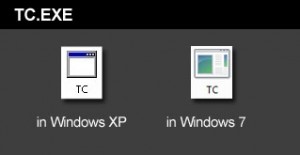
    Screenshot showing the TC.EXE executable file to run Turbo C++

    The above is the TC.EXE file that you MUST run.
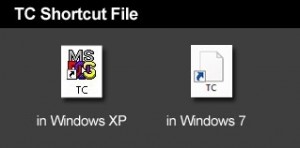
    Screenshot showing the incorrect TC shortcut file to avoid

    The above is the TC Shortcut file, don’t use it.

    The compiler is the file named TC.EXE. Don’t confuse it with the TC shortcut! Simply double click on that and the compiler will run.

  4. Just before you type your C program code, please make sure you have the correct path for the INCLUDE Directory and LIBRARY Directory. You can check by clicking on Options -> Directories…
  5. The path for the INCLUDE Directory must be C:YourFolderINCLUDE. For example, C:tcpp3INCLUDE. The file you downloaded uses tcpp3 as folder name, which is why I’m using the same folder name in my example. Please make sure you specify the correct path to the INCLUDE folder, this is crucial, or else it you would get errors. The INCLUDE folder should directly under tcpp3 folder, and tcpp3 folder is directly under your drive C folder.
  6. And the path for the LIBRARY Directory must be C:YourFolderLIB, for example C:tcpp3LIB. Again, check if you have the correct path to the LIB folder.
  7. Remember to change the YourFolder into the name of the folder you are using for your Turbo C++.
  8. You can now test a C program code. First, select File from the menu and choose new. Copy the sample codes at the end of this blog entry.
  9. After copying the codes, select Run from the menu, and choose Run. There should be an output of Hello World on the screen. The codes worked for me, please copy them carefully.

Hello World sample code for testing in C language

Hello World sample code for testing in C++ language


Related Posts

About the author:

Catzie Avatar

The homo sapiens behind these blog posts is “Catzie“

Explore my top blog posts:

Comments

261 responses to “Turbo C++ 3.0 Windows 7 Free Download: Compiler with Instructions”

  1. orestes Avatar
    orestes

    thanks for being free

  2. pravin Avatar
    pravin

    thank u

  3. tumhara baap Avatar
    tumhara baap

    yaar time bahut lagta hain …
    anyways thanks a lot …………

  4. tumhara baap Avatar
    tumhara baap

    yaaron yeh to ek bahut kaam ka blog hain…….

    tumhara baap

  5. Sarah Jane Dy Avatar

    Help me to make a turbo c program.Tnx!

  6. Ejaz Ahmad Avatar
    Ejaz Ahmad

    hi hellow

    1. balaji Avatar
      balaji

      wer is the “archive from the link(s) provided somewhere at the top of this post”,,,i cant find it utall.pls anyone help me,i need it urgent

  7. garotee Avatar
    garotee

    not working

    1. Catzie Avatar
      Catzie

      Hi, are you using Windows XP or not?

      1. joy Avatar
        joy

        what if Im using vista? I cant run the program. unable to open stdio.h and conio.h
        can u give me a trouble shooter 4 that. pls help!

        1. Catzie Avatar
          Catzie

          Regarding the “unable to open…” error, have you checked if the directory paths specified under OPTIONS -> DIRECTORIES are exactly the same paths where your compiler’s INCLUDE and LIB folder reside?

          I often encountered such error in the past, later finding out that the directory paths do not match.

  8. Ron Avatar
    Ron

    when i press ctrlf9 it shows “unable to open cos.obj” what cud be the prob…

    1. Catzie Avatar
      Catzie

      You may want to check this page. I hope it helps.

  9. Ahmad Nabeel Avatar
  10. Jerry Avatar
    Jerry

    How if i press ctrlf9 it shows “unable to open cos.obj” can you help me? PLEASE!!!

    1. Jerry Avatar
      Jerry

      YES!!! I know now the solution to “unable to open cos.obj” Just simply click “FILE”, then click Change Directories, click “OBJ” and click it again twice to be sure and OK. I hope it may help.Thanks Poochycat!!! lol.

      1. Catzie Avatar
        Catzie

        Hey, that was nice. Good luck. 🙂

  11. Palash Avatar
    Palash

    Thanks catzie ….you are really sexy and helpful. Appreciate your help.

  12. vivek Avatar
    vivek

    i
    have downloaded the c lang version 3.0
    but every time i execute a program i m getting a message like
    unable to open stdio.h and conio.h
    can u give me a trouble shooter 4 that

    1. Catzie Avatar
      Catzie

      I think you haven’t set the directories correctly if that’s the error that shows up. 🙂

  13. Sushmita Avatar
    Sushmita

    Which code you r talking about here????

      1. jenny Avatar

        thank you very much you’ve been a very big help thank you

  14. shibz Avatar
    shibz

    i cant find tc.exe…..wot should i do…and it opens in winzip….

  15. shibz Avatar
    shibz

    i cant find tc.exe…wot should i do…and it opens in winzip…

    1. Catzie Avatar
      Catzie

      You should first extract the folder using winzip, and then look for tc.exe in the extracted folder 😀

  16. shibz Avatar
    shibz

    it says publisher unknown

  17. shibz Avatar
    shibz

    it shows error dat it is unable to open include files….even though i have made changes in directories

  18. jerriz Avatar

    hi..im a 1st yr student in IT..ive downloaded your c++..but the include file cant run a program..what shoul i do,so my program accepts the include file??

    1. Catzie Avatar
      Catzie

      Can you give the error message it shows?

Leave a Reply

Your email address will not be published. Required fields are marked *