Tag: Android app development

  • Android app dev: Intent extras set in onBackPressed() misssing when back to onActivityResult()

    It’s funny how we spent about an hour trying to figure out why the Intent extras that we’re setting are not being sent back to onActivityResult(). If we only knew that the solution was as simple as moving one line of code.

    The call to super.onBackPressed() should be placed after setting Intent extras and after finishing the current activity. Like so:

  • Android app dev: Missing import org.apache.commons.lang3.text.WordUtils;


    I use a few instances of WordUtils.capitalizeFully() on an Android app that I’ve been working on. And there are times when the import org.apache.commons.lang3.text.WordUtils;
    breaks, sometimes after merging with some of my git branches.

    To fix this, what I do is open app/build.gradle and add the following line under dependencies:

    Hope this saves somebody else’s day 😆 I got the solution from How to add org.apache.commons.lang3 to AndroidStudio with gradle

  • Something to avoid when using Android RecyclerView

    When using Android’s RecyclerView, don’t use the same inflated XML layout file for items you intend to shuffle on the fly! Their contents will overlap.

    -CK

  • Android RecyclerView notifyItemChanged() IllegalStateException “Cannot call this method while RecyclerView is computing a layout or scrolling”


    If your Android app is crashing with error IllegalStateException “Cannot call this method while RecyclerView is computing a layout or scrolling”, you may try placing your notifyitemchanged inside a Runnable.

    Assuming you have a call to notifyItemChanged() inside onBindViewHolder() that is making your app crash with IllegalStateException, you may try something like this:

  • Simple SMS Reader app in Android using BroadcastReceiver class

    Before I began coding Android apps, I was amazed how verification processes go like this: The Android app tells you they’ll send you an SMS containing verification code, and that you need to enter such code into a text field on the Android app. But when you receive the SMS, the verification code appears on the text field before you even type! I was like, whoa, how do they do that?

    Now that I am able to develop simple Android apps, I already have an idea how it’s done.

    We extend a class called BroadcastReceiver and implement its onReceive() method. This receiver is then registered either in the AndroidManifest.xml file, or registered as needed in a .java file (e.g., Activity)

    I’m registering mine in my MainActivity file. I’ll provide the link to my project files on Github later on this page, but for now here’s what it looks like:

    I first created a class called SmsReceiver which extends the BroadcastReceiver class that I mentioned earlier. Inside it, there’s an implemented method onReceive(), where we first check if the Intent’s action is android.provider.Telephony.SMS_RECEIVED, otherwise we do nothing. We read message(s) that the Android devices just received and get the originating address (e.g. phone number of sender) and message body. Then lastly, the TextViews in the XML file are updated with the originating address and message body so you could see that thea app works.

    By the way, I used a Handler in this app so that I could set the values of TextViews inside the MainActivity’s XML file. A new Handler object is passed from MainActivity.onCreate() to the SmsReceiver constructor. And later on once the message originating address and message body are available in BroadcastReceiver.onReceive(), we use the handler to “post” and set the TextView values.

    Now, for the source files of this Android app…

    Feel free to download my Android project files here: Android-Incoming-SMS-Reader

    Resource:
    http://stackoverflow.com/a/14648933

  • Android app development: click a ListView item programmatically


    I’m going to share a code snippet that you may use to programmatically click a ListView item in your Android app. This will not simply highlight the desired ListView item, but also trigger the onItemClick listener.

    This code is what I placed in a Fragment’s onLoadFinished() method:


    Simply replace the default_position value with the index number of the ListView item you want to click/select programmatically.

    That item should be highlighted (assuming you have like, touch selectors) and also trigger the onItemClick listener on Android.


    A possible error is . If this happens, wrap your code around a Runnable(), like this:

  • Android app dev: Add ActionBar to Preference Activity

    When I converted an activity into PreferenceActivity, I noticed that its ActionBar disappeared. I’ll show you how I brought the ActionBar back to my PreferenceActivity.

    In this guide I will assume that the name of the file that contains your is SettingsActivity.java, and that the view assigned to your SettingsActivity.java is named .

    First, create settings_toolbar.xml under /app/src/main/res/layout/ and place the following code into it:

    Then add the following overridden method to SettingsActivity.java:

    The Java method programmatically creates a Toolbar object from the XML toolbar at settings_toolbar.xml.

    Reference(s): Creating a Preference Screen with support (v21) Toolbar

  • Android app dev: ShareActionProvider in Activity & Fragment

    I’ve been taking the Developing Android Apps course on Udacity, and yesterday I encountered a difficulty in solving the Quiz: Share Intent.

    One of the course’s goal is to build the Sunshine App – an Android app with weather forecast.

    In that quiz I had to implement ShareActionProvider on my DetailsFragment so that a share icon becomes available on my app’s ActionBar.

    One of the main difficulties was the error that stated ActionProvider cannot be cast into ShareActionProvider. And at some point there was also an error saying that the methods/classes I’m using require API 14, while my minimum supported API is 9. The Udacity course required that I set it to 9 so I couldn’t change that.

    Now, the sharing in my app is working file, and I will share how I did it via Gist. I actually ended up taking a peek at the code provided by Developing Android Apps course on Udacity because I didn’t want to waste any more time doing trial-and-error (I have another project to work on! lol), but I still had to edit their code for ShareActionProvider here and there to make it bug-free.

    And so, take a look at how my Sunshine app codes ended up:

  • Android M runtime permissions utility class


    Hello world, I prepared a PermissionsUtil.java class and it’s on GitHub.

    Check it out: AndroidPermissionsUtil

    Why use it? It will help by letting you write less code as you add conditions to your Android app that supports Android 6.0 (Marshmallow). The utility class defines helper methods that were used in the following example.

    Sample usage of Android M PermissionUtils

    On the activity where you need to check for runtime permissions, add these:

    And add the callback function to the same activity:

    Feel free to use in on any project. And please let me know if you have suggestions on how to improve that Android M runtime permissions utility class.

  • Android app codes for Google Maps with clustering

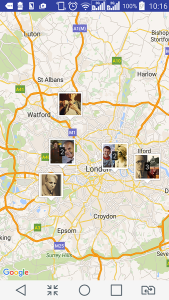
    I prepared Android app codes with Google Maps and clustering feature. Feel free to use these as basis for your new projects.

    They are on GitHub:

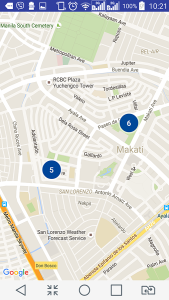
    Android map clustering with default markers

    [1] Default Map Markers:
    catzie/SimpleAndroidMapClustering


    I simply took the necessary classes and res files from Android Maps Utility demo, and then placed them into bare Android Studio projects for simplicity. For me, it’s easier to start a new “maps with clustering” project on simple apps like these, rather than downloading the entire Android Maps Utility Demo, picking out the necessary files, and fixing errors before getting started each time. 😆