Author: Catzie

  • BPI online account disabled? Here’s what you can do

    When you login to BPI Express Online account and get a message that says your BPI online account is disabled, you should be taken to a page where you can reset your password. This is because BPI requires password reset when your online account is disabled.

    On that page you will be able to choose between resetting your password via ATM or via phone.

    Automated processes are always more convenient to me (i.e. less human interaction) because they are faster so I chose to reset my BPI online password through an ATM. I will only cover the ATM activation in this article, and not the phone activation.

    Choose new password (BPI online account disabled)

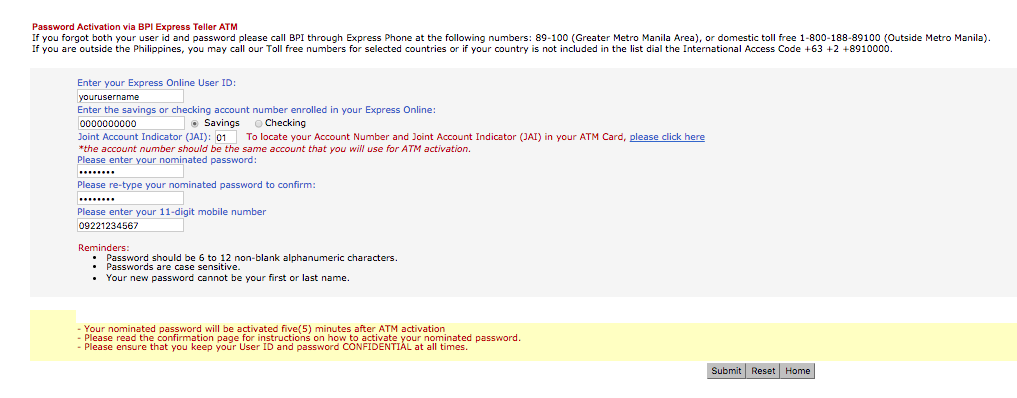
    After choosing ATM, you need to fill out this form like so:

    BPI-online-disabled-password-reset

    The BPI account number that you will enter on the form should should match the account number of the ATM card that you plan to use for the BPI ATM activator later.

    You should receive an email “BPI Express Online Password Reset Nomination” with the following instructions:

    This is to confirm your request to nominate a new password in BPI Express Online
    Confirmation Date & Time: 10/20/2016 10:00:00 AM
    Confirmation Number: XXXXXXX

    To activate your nominated password simply follow the steps below:

    1. Go to any BPI Express Teller ATM within 20 banking days
    2. Insert your ATM card
    3. Select: Special Services -> Activate Enrollments -> Express Online

    Your nominated password will be activated five(5) minutes after ATM activation.

    Please ensure that you keep your User ID and password CONFIDENTIAL at all times.

    At Your Service,
    The BPI Express Online Team

    Activate new password on any BPI ATM (BPI online account disabled)

    After filling out that form, you need to go to a nearby BPI ATM for password activation, but only within 20 days! It is best to go to a BPI ATM as soon as you’re done nominating a new password online. Insert the ATM card whose account number is the same as the one you typed in the form earlier online. Choose Special Services -> Activate Enrollments -> Express Online , and after 5 minutes, your new BPI online account should no longer be disabled. You may also use your new password.

    Confirmation of BPI password activation

    Now, you should receive a new email “BPI Express Online Password Reset Activation”:

    Greetings from BPI Express Online.

    This is to confirm that your nominated Express Online password is already activated.

    In case you don’t remember nominating a new password, may we request you to please reply at once to this e-mail and/or call your 24-hour phonebanker at Express Phone no. 89-100.

    Please ensure that you keep your User ID and password CONFIDENTIAL at all times.

    At Your Service,
    The BPI Express Online Team

  • Add “options menu” to an AppCompatActivity (Android App Development)


    Adding an “options menu” to an Android app’s Activity is quite simple.

    This is an example of what an Android options menu looks like. Look at the icon that looks like 3 dots vertically stacked.

    android options menu

    My dev environment status as of writing this

    Android Studio version: v. 2.1
    OS: Mac OS X El Capitan v. 10.11
    My Android app build status:

    • compileSdkVersion: 24
    • buildToolsVersion: 24.0.2
    • minSdkVersion: 16
    • targetSdkVersion: 24

    Add “options menu” to an Android AppCompatActivity

    #1 Create menu layout file

    Create res/menu/main.xml, creating the menu folder if not yet existing.

    Add the following to res/menu/main.xml:

    #2 Enable menu by adding MenuInflater to the Activity

    Add the following overriding method to your AppCompatActivity:

    #3 Add listener for selected options menu item

    Again, add the following overriding method to your AppCompatActivity. Replace the Toasts with whatever you need to do upon menu item selection:

    That’s it! Your Android Activity should now have an options menu on the actionbar

    My resources for adding my options menu to Activity

    Adding the App Bar
    Android SDK: Implement an Options Menu

  • How to disable auto-renewal of Sun Cellular MB99 or MB250 mobile Internet subscriptions

    Turn off auto-renewal of Sun Cellular mobile Internet subscriptions:

    Sun Cellular auto-renewed my MB99 and MB250 on my postpaid account, to my surprise. I also couldn’t turn it off. Right now I’m still waiting for feedback from Sun Cellular’s support team.

    Here’s what you can try though:

    Text “DATA OFF” to 9999

    or

    Text “MB99 OFF” to 247

    Text “MB250 OFF” to 247

    Details on Volume-based offers MB99 and MB250:

    Offer Price  Keyword Validity Inclusions 

    MB99 

    Php 99

    MB99

    30 days 

    200MB + 1000MB Spinnr 

    MB250 

    Php 250 

    MB250

    30 days

    700MB + 1000MB Spinnr

    I was thinking of having my Sun Cellular postpaid terminated. Their service is not satisfactory – I email their Support team because that’s the most convenient way for me, but they barely give any help.

    Also, I think these auto-renewing mobile Internet packages are “sneaky” ways to get more money from customers. They’re not easy to turn off either.

    Visited Sun Shop to confirm if auto-renewal is turned off

    I was at Sun Shop (Greenbelt 1 branch) by 6:15pm and waited long for my turn. After about 20 minutes it was finally my turn.

    From what I understood, there’s no way for the support group – by email or at Sun shop, to check if a Postpaid subscriber’s account has any active auto-renewal for volume-based subscriptions such as MB99 and MB250.

    I was bugging the email support team of Sun Cellular, requesting them to please turn off my auto-renewal from their end but they could not do it. They just keep telling me to wait for feedback from another team, but it’s already 3 weeks since I first brought up my problem, and I still haven’t received any help from the email support team.

    The customer support representative at the Sun Shop I visited today told me that the only indicators of active auto-renewal plans are first, the system response when we try to turn them off (See section above, “Turn off auto-renewal of Sun Cellular mobile Internet subscriptions”) or if they are reflected on your next Statement of Account. I don’t understand why their system does not include a way to check anytime if auto-renewal of MB99 or MB250 is turned on or off, not even from support team’s end. 🙁 The representative I talked to today told me to just check my bill on November. My “MB250 OFF” sent to 247 seemed to have succeeded because I received a notification of success, so I should not see an MB250 charge on my next bill. Otherwise, I should file a complaint.

    Downgraded from Sun Cellular’s sim-only Plan 249 to Plan Zero

    Sun Cellular Plan Zero is the best Postpaid plan for my current usage. I could not fully utilize Plan 249 so I told the Sun Shop customer support rep that I want a different plan with lower monthly fee, and he suggested Plan Zero. Sun Cellular Plan Zero basically is a “pay-per-usage” kind of Postpaid plan. You don’t get unlimited texts or hours of calls – you pay for every text and call, and you pay 5 pesos per 15 minutes of Internet. But if you don’t use it for one month, you don’t pay anything – or should I say, you pay zero pesos? ^_^ So yeah, that would be the Sun Cellular Postpaid plan with lowest monthly fee of zero. Hehe.

    The activation of change of my Sun Cellular Postpaid account type was instant. The rep asked me to settle my balance first – I paid at the Sun Shop cashier. Then he asked me to sign a form, and after he processed it, I almost instantly received a text message saying my request has been processed. I was annoyed though. The rep told me I should see a particular reference number on the SMS but it only says “We are pleased to inform u that ur REQUEST for (SPECIFIC TRANSACTION) has been processed. Thank you.” It seems that their developers’ code is not replacing the substring “(SPECIFIC TRANSACTION)” with the proper value. >:( So I just assumed that this transaction is the Plan 249 to Plan 0 downgrade.

    By the way, my Sun Cellular Plan Zero has 600 pesos credit limit.

    I finished talking to Sun Shop rep around 8:00pm. The rep was courteous and easy to talk to.

    Sun Cellular service subscribers will be transferred to Smart Communications, Inc.

    On October 3, I received the following text from Sun Cellular:

    Greetings! We are pleased to inform u that effective Nov 1, 2016 subscribers of DMPI for its Sun Services will be transferred to Smart Communications, Inc.

    With this pls address all payments for ur Sun Postpaid to Smart and ur Official Receipts will be sent together with ur next billing statement. Thank you.

    I mentioned this to the Sun Shop rep I talked to tonight, and he told me that we should check if there’s any change in our account number for Sun Postpaid. Since we are going to be merged with Smart subscribers, it’s possible that our account number may conflict with any Smart account number, which will need account number change.

  • Java: method to convert degrees into directions (16-wind compass rose)

    I’m working on a weather app for Android. The data for wind direction that I get from the weather API is in form of degrees (0 to 360). I want to display wind direction in a user-friendly format such as N (North), NNE (North-northeast), NE (Northeast), ENE (East-Northeast), E (East), ESE (East-Southeast), SE (Southeast), SSE (South-Southeast), S (South), SSW (South-Southwest), SW (Southwest), WSW (West-Southwest), W (West), WNW (West-Northwest), NW (Northwest), and NNW (North-Northwest). I think this is more user-friendly, at least when compared to degrees format.

    16-wind compass rose
    The eight half-winds are the points obtained by bisecting the angles between the principal winds. The half-winds are north-northeast (NNE), east-northeast (ENE), east-southeast (ESE), south-southeast (SSE), south-southwest (SSW), west-southwest (WSW), west-northwest (WNW) and north-northwest (NNW). Notice that the name is constructed simply by combining the names of the principal winds to either side, with the cardinal wind coming first, the ordinal wind second. The eight principal winds and the eight half-winds together yield a 16-wind compass rose, with each compass point at a 22 1⁄2° angle from the next.

    Points of the Compass

    And here is the Java method that I prepared so I can convert direction data from degrees into directions (16-wind compass rose):

  • Android app development: click a ListView item programmatically


    I’m going to share a code snippet that you may use to programmatically click a ListView item in your Android app. This will not simply highlight the desired ListView item, but also trigger the onItemClick listener.

    This code is what I placed in a Fragment’s onLoadFinished() method:


    Simply replace the default_position value with the index number of the ListView item you want to click/select programmatically.

    That item should be highlighted (assuming you have like, touch selectors) and also trigger the onItemClick listener on Android.


    A possible error is . If this happens, wrap your code around a Runnable(), like this:

  • PHP: Parse Dates in CSV with inconsistent date formats

    A friend was having trouble with a CSV file that she needs to process via PHP before saving to database. The CSV files uploaded to the server have inconsistent date formats such as:

    So I prepared a PHP script that lists possible date formats in an array $possible_date_formats and then iterates through the dates read from the CSV file, matching each against the date formats in the array.

    Assuming you have a .csv file with tab-delimited data such as this:

    My PHP file will output this when it’s run:

    And below is the PHP file I’m talking about.

  • Android app dev: Add ActionBar to Preference Activity

    When I converted an activity into PreferenceActivity, I noticed that its ActionBar disappeared. I’ll show you how I brought the ActionBar back to my PreferenceActivity.

    In this guide I will assume that the name of the file that contains your is SettingsActivity.java, and that the view assigned to your SettingsActivity.java is named .

    First, create settings_toolbar.xml under /app/src/main/res/layout/ and place the following code into it:

    Then add the following overridden method to SettingsActivity.java:

    The Java method programmatically creates a Toolbar object from the XML toolbar at settings_toolbar.xml.

    Reference(s): Creating a Preference Screen with support (v21) Toolbar

  • Install & config Apache, MySQL and PHP on your Mac (MAMP)

    Install & config Apache, MySQL and PHP on your Mac (MAMP)


    There’s a Mac computer that I want to use as local development server for web apps. I don’t want to use bundled installers like XAMPP or MAMP because I feel that I will learn more about Apache if I install each component of the LAMP stack separately. By the way, one of my goals is to be an expert in the LAMP stack. And prior to writing this blog entry, I had only been concerned about the actual coding of web apps, and have never had the chance or need to play with the installation and configuration of Linux, Apache, MySQL and PHP as individual components since there’s always been XAMPP and MAMP for easy setup in my local environment. And at work, someone else is always in charge of setting up our Linux server and the rest of the things we need for our production environment.

    I also plan to setup a LAMP environment on my Mac by using VirtualBox to create a virtual machine with Linux, but I’m saving that for another post if it happens. 😆

    Here in this blog entry, I shall take note of the steps that I take as I setup Apache, MySQL and PHP on Mac.

    My environment

    Computer: MacBook Pro
    Operating System: OS X El Capitan version 10.11.5
    I’ll be using the Terminal and Vim editor

    Apache, MySQL, and PHP versions that I will setup:

    Apache: version 2.4.18 (bundled with El Capitan, default)
    MySQL: version 5.7.15 (installed via Homebrew)
    PHP: version 5.5.34 (bundled with El Capitan, default)

    I have no MAMP, XAMPP or any bundled *AMP stack installed on my Mac, so I will have fresh install of MySQL.

    Start Apache on your Mac

    Apache is already in OS X El Capitan so I just need to set it up. If you want to check your Apache version, run the command httpd -v in Terminal. Mine is Apache version 2.4.18.

    Type this command in Terminal to start Apache on your Mac:

    Now that we started Apache, you should now be able to access the URL http://localhost/.

    Start PHP on your Mac

    Maybe you expected this section to be for MySQL setup, but I’m going to work with PHP first since it should be already in OS X El Capitan, like Apache.

    Also, as of writing, the latest PHP version is 7 but I want to take one little step at a time as I write this so I’ll stick with the PHP 5 bundled with my Mac. I will try to post another blog entry on how to upgrade from PHP 5 to PHP 7. 🙂

    We are going to edit the Apache configuration file to enable PHP on Mac, but for now let’s make a back up of the file. Let’s do that by running these commands:

    Notice the 20160910 in the command sudo cp httpd.conf http.conf.20160910.bak. It’s the date when I made a backup. You may change the date or even delete it.

    Open Vim to edit httpd.conf by running this command:

    Find the following line in httpd.conf and uncomment it:

    Remove the hash symbol (#) at the beginning of that line to uncomment it.

    Vim editor tip: when you open the httpd.conf file, search for the line containing “php5_module” by pressing the esc key to make sure you’re not in INSERT mode, then type /php5_module and then hit the return/enter key. Vim should point you to the line that you should uncomment. Press the “i” key to enter INSERT mode in Vim, and uncomment that line. To save the file, press esc key again and type :wq!

    Now, restart Apache to reflect the change:

    Check if PHP works

    Run these commands:

    Press the “i” key to enter INSERT mode again, then place this PHP code into temp_phpinfo.php:

    Then using your web browser, go to http://localhost/temp_phpinfo.php

    If the page shows a table of details about PHP, then PHP now works on your Mac. Good job! 🙂

    I recommend that you delete this temp_phpinfo.php file though, and avoid using phpinfo() especially in production servers because it can lead to security issues. It will be easier for attackers to hack into your system when they see all the details that phpinfo() exposes.

    Install MySQL

    Install Homebrew if you haven’t yet. I choose to install MySQL with Homebrew because I find the process simple.

    Run this command to install MySQL via Homebrew:

    The installation process on my Mac looked like this:

    By default, Homebrew installs MySQL without root password, and with this setup, you can now log into MySQL by typing:

    But wait! Securing MySQL with a password is highly recommended, and if you agree, run this command:

    With a password for root set, you should access MySQL with this command instead, adding a -p to the command for a password prompt:

    MySQL command line on a Mac Mini with MAMP bundle installed

    The Mac Mini I’m using at work already has MAMP installed, but I followed the steps for setting up Apache, MySQL and PHP in this page just to test. Since MAMP is already installed, I already have MySQL.

    So, before using MySQL via command line, simply start your MySQL server from MAMP and then use command line MySQL by logging in like this:

    Create sample database table for testing with PHP later

    Run the following commands:

    This is what my MySQL command line interface looked like:

    Make sure PHP can communicate with MySQL

    The following command creates a symbolic link to help point to the right socket for MySQL to use on Mac.

    Reason: “You may have a socket (appearing as a zero length file) as /tmp/mysql.sock or /var/mysql/mysql.sock but 1 or more apps is looking in the other location for it.” – source

    Another option: A fellow developer told me that instead of creating a symbolic link to the socket, he connects directly to localhost:3306, connecting through networking sockets instead of Unix sockets.

    Enable mod_rewrite

    My guide suggests we enable this now to avoid forgetting later that it’s not yet enabled. This will prevent hiccups when we’re already busy with coding web apps.

    Edit the config file with Vim.

    Uncomment the following lines:

    Restart Apache:

    Sample PHP-MySQL code to test your “MAMP” stack

    Remember the table I created earlier? This is when we’re going to use that.

    Run this command, we’re going to paste code into it:

    Paste the following PHP code which SELECTs data from a sample MySQL table. Remember to edit the variable values to match your own settings, especially the password.

    Visit this link on your browser: http://localhost/testsql.php

    It should display this:

    1 catzie
    2 petar
    done

    Move Document Root folder

    Right now, the document root is at "/Library/WebServer/Documents", and you may have noticed that each time we edit a file to create a new file within this folder, we need to sudo. That is inefficient, so let’s move our document somewhere that we won’t have to sudo for each change that we want to make.

    We will move document root from "/Library/WebServer/Documents" to /webcontent.

    Create “webcontent” folder under the root directory /. You can choose any other name you like.

    Let’s create a sample page inside the newly created folder.

    And place anything there such as “Hello!”

    Now, let;s edit the Apache configuration file to point to the /webcontent folder:

    Change the line DocumentRoot "/Library/WebServer/Documents" into /webcontent

    Change the line <Directory "/Library/WebServer/Documents"> into <Directory "/webcontent">

    Restart Apache:

    Visit http://localhost again, and you should see whatever text you placed inside /webcontent/index.html

    Just in case you still need to ‘sudo’ to access /webcontent folder

    Try to copy the /webcontent/index.html file to check if you no longer need sudo in the /webcontent folder:

    If it gives you the error cp: /webcontent/index2.html: Permission denied then here are your options:

    • Option #1: Change ownership of /webcontent folder

      In the Mac Mini I use, the directory permissions for /webcontent is drwxr-xr-x which means only the owner (root) has permissions write to it, unless I sudo as another user, which is not convenient if I need to edit many files.

      What we can do is change ownership of /webcontent from “root” user to our own user, like so:

      Now try to create or edit files under the /webcontent folder. Your system should no longer deny you permission, since it is owned by you. So far I have not encountered a problem yet with this setup.

    • Option #2: Move document root under your user folder

      You can try to move your document root under your user folder, i.e. ~/ or /Users/<yourUsername>, and see if you can edit files there without the need for sudo. Your user is the owner of this folder so you shouldn’t need additional permissions to edit files under it.

    On my MacBook Pro, I no longer had to sudo when I edit files in new document root /webcontent, but on another Mac computer that I use (Mac Mini), I still needed sudo to edit files in document root. I will edit this blog entry when I find a way to avoid this.

    Tested on:

    Computer: Mac Mini
    Operating System: OS X El Capitan version 10.11
    Apache: 2.4.16 (bundled with El Capitan)
    PHP: 5.5.27 (bundled with El Capitan)
    MySQL: 5.5.34 (bundled with installed MAMP)

    Extras…

    How to stop Apache on your Mac

    Type this command in Terminal to stop Apache on your Mac:

    or

    Based on my observation, when I start and stop Apache multiple times, the stop command with -k only works on the first time. Succeeding commands for stopping Apache becomes just sudo apachectl stop.

    How to check version of Apache, MySQL and PHP

    Apache version:

    or

    MySQL version:

    If using MAMP bundle, MySQL service should be running when you use this command:

    The welcome screen should show MySQL version when you login to MySQL via command line:

    PHP version:

    ERROR 2002 (HY000): Can’t connect to local MySQL server through socket ‘/tmp/mysql.sock’ (2)

    When I got this error regarding a socket (my MySQL is installed via Homebrew), it was fixed when I started MySQL by running the following command:

    I think the same command is used for both starting and restarting of the MySQL server. Note that this is the command I use for my MySQL that’s installed via Homebrew. If you have MAMP GUI and not the MySQL from Homebrew, simply use that interface to start your MySQL service.

    Reference(s):
    Install MySQL on Mac OSX with Homebrew
    Running Simple Select Statements
    symbolic link setup for correct socket file locations in Mac OS X for MySQL
    Version of Apache in Mac
    Main Guide: Installing Apache, PHP, and MySQL on Mac OS X El Capitan
  • Read & write to NTFS from your Mac computer

    Read & write to NTFS from your Mac computer

    My external HDD is in NTFS format and the Mac I’m using at work cannot write files to it. I solved this issue by running NTFS-3G on my Mac OS X version 10.11.


    Follow these simplified instructions to mount your NTFS drive as writeable in your Mac. If you encounter any problem, scroll down below the instructions to see solutions for errors I encountered.

    1. Install Homebrew package manager by running the following command, as instructed in brew.sh:

    2. Install osxfuse if you haven’t yet.
    3. Install NTFS-3G from Homebrew by typing this on your Terminal:

    4. Plug your external drive into your Mac
    5. Unmount the external drive from your Mac if it’s already mounted. (Unmount, not unplug!)
    6. Run the following commands to manually mount the external HDD as NTFS-3G:

    7. Your external drive should now appear as NTFS-3G format drive, and you should be able to write on it now from your Mac.

    Error Fixing

    OsxfuseRequirement unsatisfied

    I tried to install NTFS-3G on my personal MacBook Pro but it failed with this message after installing Homebrew:

    So I run this command to install osxfuse:

    My brew install homebrew/fuse/ntfs-3g command moved past that issue after that.

    brew link errors

    I got these errors after running the command brew install homebrew/fuse/ntfs-3g again:

    So I ran brew doctor and some of the results were these:

    Warning: The following directories are not writable:
    /usr/local/share/man

    This can happen if you “sudo make install” software that isn’t managed
    by Homebrew. If a formula tries to write a file to this directory, the
    install will fail during the link step.

    You should change the ownership and permissions of these directories.
    back to your user account.
    sudo chown -R $(whoami) /usr/local/share/man

    Warning: You have unlinked kegs in your Cellar
    Leaving kegs unlinked can lead to build-trouble and cause brews that depend on
    those kegs to fail to run properly once built. Run brew link on these:
    ntfs-3g
    pkg-config

    First I ran this command for the permission issue: sudo chown -R $(whoami) /usr/local/share/man

    Then ran this command too: brew link ntfs-3g

    After the linking, brew install homebrew/fuse/ntfs-3g finally installed successfully!

    Failed to access volume /dev/disk1s1

    After running the command sudo /usr/local/bin/ntfs-3g /dev/disk1s1 /Volumes/NTFS -olocal -oallow_other, this error was shown:

    ntfs-3g: Failed to access volume ‘/dev/disk1s1’: No such file or directory

    This means disk1s1, as specified in the command, cannot be found. What you can do is find the IDENTIFIER of your external drive from the table that this command returns:

    Reference(s): NTFS-3G on osxfuse

  • Interesting dishes at “Your Local” in Legazpi Village,  Makati (review)

    Interesting dishes at “Your Local” in Legazpi Village, Makati (review)

    Friend: “is your office close to your local?”
    Me: “close to… my local?”
    Friend: “no, the place’s name is ‘your local’!”
    Me: “ohh!”

    I searched for the place Your Local and found our that it’s a restaurant in Esteban St. in Makati’s Legazpi Village. They had interesting dishes like laksa fettuccine, torched salmon donburi, and beef rendang buns.

    Their drinks and dessert also sounded interesting, like Arnie Palmer (earl grey iced tea with lemon grass and orange) and chocolate earl grey pudding and lime mousse.

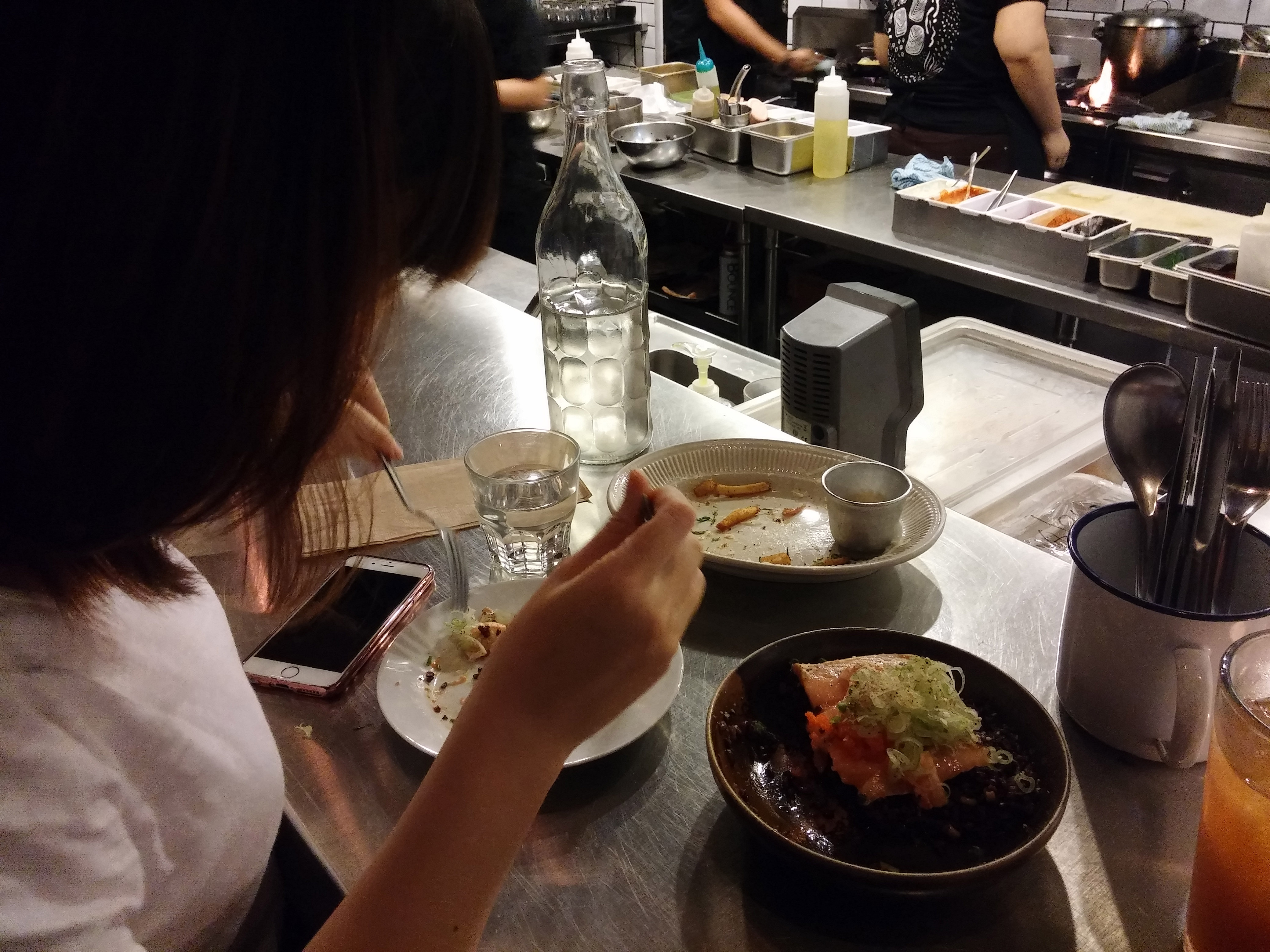
    We sat in the bar area, where we could see food preparation. I enjoyed watching them enjoying themselves prepare food.

    bar-at-your-local

    😀 I’ll probably look like them when I open a dessert shop one day. 😆 It seemed like the salmon donburi and the black-bun burger are one of their best sellers. It was so cool watching a lady set the dish “torched salmon donburi” on fire. hehe. For several times I had seen them prepare a burger with black buns. I’d like to try that next time.

    I like trying new dishes and enjoyed what I tried at Your Local in Legazpi Village, Makati.

    Parmesan Fries with Truffle Ketchup at Your Local

    parmesan-fries-truffle-ketchup-your-local

    My friend and I tried parmesan fries with truffle ketchup, torched salmon donburi, and lamb rendang. The fries smelled like bonito. I think the fries weren’t seasoned with salt because they are bland by themselves, but get tasty when you dip them into the ketchup. I liked how crispy the fries were too.

    I don’t know what truffle flavor tastes/smells like, so I can’t tell if the ketchup had a “truffle-y” flavor. It actually doesn’t taste different from tomato ketchup.

    Torched Salmon Donburi at Your Local

    torched-salmon-donburi-eating-your-local

    The salmon donburi was delicious too, served with black rice. The salmon was soft, moist and tasty, and I liked the rich mayo on it.

    torched-salmon-donburi-1-your-local

    We need more rice with this!

    Lamb Rendang at Your Local

    lamb-rendang-mint-sauce-your-local

    lamb-rendang-mint-sauce-poached-egg-your-local

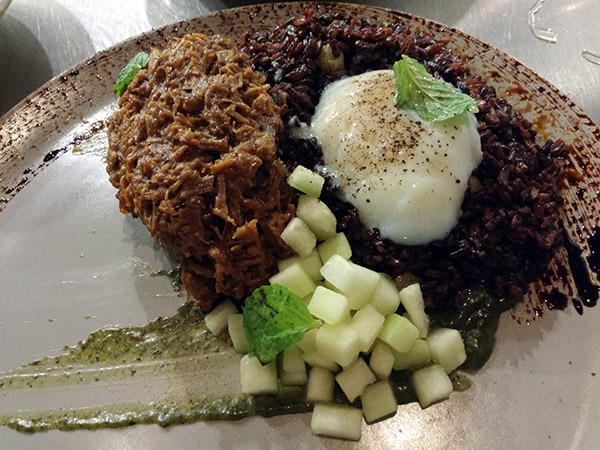
    Oh, the lamb rendang — I liked how the meat was shredded. Everything else on the plate went well with it: mint sauce, raisins, cucumber, and black rice. The only think that could improve the dishes is… more rice! XD I felt that the salmon and rendang were very tasty (and tasty usually needs more rice), but they seem to skimp on the amount of rice they serve with the dishes.

    The torched salmon donburi needed more rice, but this lamb rendang was tastier that it needed much more rice with it. Your Local, please don’t skimp on rice. The dishes are not cheap anyway. 😆

    bar-your-local

    Service? The staff who waited tables were laid back and easy to talk to, but they seemed to be in a hurry to clear tables. Someone asked if he may take the plate of a dish we finished and we said yes, but to our surprise, he also took our plate of salmon that we still wanted to finish. My friend and I were distracted in our convo that we only noticed that he also took out plate of salmon when he was already walking away… a moment when it’s awkward to say “ay kuya kakainin pa po namin yan!” ??? That salmon was not cheap. HUHU

    Other “Your Local” food reviews: