Tag: android dev

  • Remove room database on app uninstall // Android Dev Diary

    The problem:

    Installing on an Android device that has an old version of an app I’m developing triggers an error:

    Room Database Migration: java.lang.IllegalStateException: Migration didn't properly handle

    Problem persists despite uninstalling the Android app and deleting all app data.

    The solution:

    Very simple. I set allowBackup to false in my AndroidManifest.xml file like so:

    android:allowBackup="false"

    Then I reinstalled the app on the Android device. Error was still triggered on first install, but after one more round of uninstall and reinstall, the error finally went away!

    Side Note / Quick Life Update:

    I have been working on an app, with me as its first user. I tentatively call it “bodymonitor”. It should let me log foods I ate, meds/supplements I took, and body sensations. My brain does not do a good job of monitoring these things so I shall get an app to help me do it. There are existing apps out there that do more or less the same thing, but I want one that caters to my specific needs. Doesn’t hurt to practice Android app development as I make the app, too!

    This weekend I’ll undergo endoscopy again, but this time it’s called a “flexible nasopharyngolaryngoscopy” which will pass through the nose instead of the mouth, to be done under local anesthesia. From the sound of it I don’t expect to be put to sleep, which makes me less anxious, but still anxious. XD It’s gonna be done because of my throat issues.
  • Two NavHosts with their own NavControllers and NavGraphs (Navigation Component) //Android Kotlin Dev Diary

    I am trying to make a single-activity app because I’d like to easily share data across screen using, ideally one, or as few as possible ViewModels.

    NavGraph 1

    Host: Layout file of MainActivity

    Destination(s): CreateLogFragment

    NavGraph 2

    Host: Layout file of CreateLogFragment

    Destination(s): CreateLogFoodFragment, CreateLogNotesFragment

    (CreateLogFragment has a BottomNavigationBar that switches between CreateLogFoodFragment and CreateLogNotesFragment)

    The problem was that NavGraph 2 was not getting the correct NavHost and NavController in the CreateLogFragment class.

    And the solution is to retrieve the NavHost in CreateLogFragment like so:

    override fun onViewCreated(view: View, savedInstanceState: Bundle?) {
    super.onViewCreated(view, savedInstanceState)

        val navHostFragment = childFragmentManager.findFragmentById(R.id.nav_host_create_log) as NavHostFragment
        val navController = navHostFragment.navController
    
        // Setup Bottom Nav
        val bottomNav: BottomNavigationView = binding.bottomNav
        bottomNav.setupWithNavController(navController)
    }

    I’d like to write a full tutorial on how to do this but I’m not sure if I could spare some time. If you’ve been reading my recent posts you’ll notice that I’m not able to put it so much effort in explaining everything. These days I’m always in a hurry to finish stuff. But I’ll still try!!

  • My Fave Android Studio Keyboard Shortcuts

    I have been working on small Android apps, and I just want to share some of my favorite keyboard shortcuts. Some of them were manually added by me.

    Keyboard shortcuts are one of my must-haves for productivity as a programmer, as they let me navigate through code faster, allowing me to focus on creating new modules and solving problems.

    Note: I am using Windows.

    Move between Code, Split, and Design when working on an XML layout file

    Alt + Shift + Left/Right Directional Button
    (If it doesn’t work, click on the layout file’s code/design first, then retry.)

    Run app in test device or emulator

    Shift + F10

    Run app in test device or emulator with Debugger

    Shift + F9

    Navigate between open tabs (no split):

    Navigate between points/screens that you’re viewing:

    Ctrl + Alt + Left/Right

    Show Parameter Info while filling in a function call

    Ctrl + P

    Maximize/minimize editor

    Ctrl + Shift + F12

    Created a custom shortcut for Close All Tabs:

    Ctrl + Alt + Shift + F4

    Created a custom shortcut for Rebuild Project:

    Ctrl + Alt + Shift + F10

    Created a custom shortcut to toggle Distraction-Free Mode on/off:

    Ctrl + Alt + Shift + D

    Created a custom shortcut to toggle ZenMode on/off:

    Ctrl + Alt + Shift + Z

    Other keyboard shortcuts: https://developer.android.com/studio/intro/keyboard-shortcuts

  • Error: Type mismatch. Required: ActivityMainBinding. Found: ViewDataBinding! //Android Kotlin Dev Diary

    The problem is that this line of code is producing an error:

            binding = DataBindingUtil.setContentView(this, R.layout.activity_main)
    

    And the error says:

    Type mismatch.
    Required:
    ActivityMainBinding
    Found:
    ViewDataBinding!

    The solution is to add a <layout> tag in the layout file that you are inflating!

  • Error inflating class androidx.fragment.app.FragmentContainerView // Android Kotlin Dev Diary

    The cause of error in Logcat:

         Caused by: android.view.InflateException: Binary XML file line #9 in net.catzie.sampleapp:layout/activity_main: Binary XML file line #9 in net.catzie.sampleapp:layout/activity_main: Error inflating class androidx.fragment.app.FragmentContainerView
         Caused by: android.view.InflateException: Binary XML file line #9 in net.catzie.sampleapp:layout/activity_main: Error inflating class androidx.fragment.app.FragmentContainerView
         Caused by: java.lang.IllegalStateException: no start destination defined via app:startDestination for net.catzie.sampleapp:id/nav_graph

    The fix was to add a startDestination to <navigation> tag in the nav_graph.xml.

  • Expand ScrollView vertically if height is smaller than screen // Android Dev Diary

    I have the following XML layout code in an Android app that I’ve been tinkering with:

    <?xml version="1.0" encoding="utf-8"?>
    <layout xmlns:android="http://schemas.android.com/apk/res/android"
        xmlns:tools="http://schemas.android.com/tools">
    
        <data>
            <variable
                name="viewModel"
                type="net.catzie.sampleapp.MainViewModel" />
        </data>
    
        <ScrollView
            android:layout_width="match_parent"
            android:layout_height="match_parent">
    
            <GridLayout
                android:layout_width="match_parent"
                android:layout_height="match_parent"
                android:background="#aaa"
                android:columnCount="4"
                android:rowCount="5">
    
                ...
    
            </GridLayout>
        </ScrollView>
    </layout>

    I wrapped my GridLayout in a ScrollView because on the landscape orientation of the Android app’s screen, my grid contents are cut from the view because they’re too tall, and there’s no way to see them without a scrollbar, which the ScrollView provides.

    That gave birth to another problem though. The landscape view looks fine, but the vertical view became too short!

    After a few clicks at Google search results I found something that helped:

    android:fillViewport="true"

    I added the above attribute to my ScrollView, and voila! A GridLayout that scrolls vertically on landscape view, and fits the height of the Android device screen perfectly on portrait view~

  • Sample Instrumented Test for Retained Text After Screen Rotation // Android Kotlin Dev Diary

    First I added the following UI Automator to my app:

    androidTestImplementation 'com.android.support.test.uiautomator:uiautomator-v18:2.1.3'

    So now my build.gradle (Module) file has the following dependecies:

    dependencies {
    
        implementation 'androidx.core:core-ktx:1.7.0'
        implementation 'androidx.appcompat:appcompat:1.5.1'
        implementation 'com.google.android.material:material:1.6.1'
        implementation 'androidx.constraintlayout:constraintlayout:2.1.4'
        implementation 'net.objecthunter:exp4j:0.4.8'
    
        testImplementation 'junit:junit:4.13.2'
        androidTestImplementation 'androidx.test.ext:junit:1.1.3'
        androidTestImplementation 'androidx.test.espresso:espresso-core:3.4.0'
        androidTestImplementation 'com.android.support.test.uiautomator:uiautomator-v18:2.1.3'
    
    }

    Then under the package app/src/androidTest/java/net/catzie/samplecalculatorapp I added the following instrumented test class:

    package net.catzie.samplecalculatorapp 
    
    import android.support.test.uiautomator.UiDevice
    import androidx.test.espresso.Espresso
    import androidx.test.espresso.ViewInteraction
    import androidx.test.espresso.action.ViewActions
    import androidx.test.espresso.matcher.ViewMatchers
    import androidx.test.ext.junit.rules.ActivityScenarioRule
    import androidx.test.ext.junit.runners.AndroidJUnit4
    import androidx.test.platform.app.InstrumentationRegistry.getInstrumentation
    import org.junit.Assert.*
    import org.junit.Rule
    import org.junit.Test
    import org.junit.runner.RunWith
    
    
    /**
     * Instrumented test, which will execute on an Android device.
     *
     * See [testing documentation](http://d.android.com/tools/testing).
     */
    
    @RunWith(AndroidJUnit4::class)
    class ValueRetainedInstrumentedTest {
    
        @get:Rule
        var activityRule: ActivityScenarioRule<MainActivity>
                = ActivityScenarioRule(MainActivity::class.java)
    
        @Test
        fun test_ui_value_after_screen_rotation() {
            Espresso.onView(ViewMatchers.withId(R.id.num_1)).perform(ViewActions.click())
            Espresso.onView(ViewMatchers.withId(R.id.num_period)).perform(ViewActions.click())
            Espresso.onView(ViewMatchers.withId(R.id.num_5)).perform(ViewActions.click())
    
            val device = UiDevice.getInstance(getInstrumentation())
            device.setOrientationLeft()
    
            val displayPanel: ViewInteraction = Espresso.onView(ViewMatchers.withId(R.id.display_panel))
            val displayPanelText = InstrumentedTestHelper.getText(displayPanel)
            assertEquals("1.5", displayPanelText)
        }
    }

    What it does is press the buttons 1, period, and 5 on the calculator’s UI to show “1.5” which should show up the display panel, rotate the screen of the emulator/device, and then check if the display panel is still showing the value “1.5”.

    I use a ViewModel and LiveData to let the value survive configuration changes such as screen rotation.

  • Prevent Huawei from Killing Your App //Android Dev Diary

    I have been playing around with Android app development, particularly on how to retain UI values after configuration changes and minimizing the app to launch a different one.

    To retain values after configuration changes, I use ViewModels.

    And to retain values after minimizing the app, the following is supposed to do the trick:

        override fun onSaveInstanceState(outState: Bundle) {
            super.onSaveInstanceState(outState)
             outState.putInt(KEY, number)
        }
        
        override fun onRestoreInstanceState(savedInstanceState: Bundle) {
            binding.textView.text = savedInstanceState.getInt(KEY)
        }
    

    But in the phone where I test most of my apps, it doesn’t! Minimizing my app to play a YouTube video, open a mobile game, and watch a few TikTok videos for about 15 minutes, causes my app’s UI data to reset.

    I installed the same app to another phone, a Samsung phone under the A Series. The user played a mobile game for several hours, and came back to my app to find all the previous UI values still intact!

    I remember that when I was still working with the Squadzip team (still grateful to Roman for suggesting that I try to practice “mindfulness” — it works wonders for a hectic lifestyle!), that Huawei phones gave us the same kind of issue. Apparently, Huawei phones are quite aggressive at killing apps in the background to preserve battery life.

    Options that I considered to prevent Huawei phone from killing my Android app in the background:

    • Save UI data to SharedPreferences, on top of using Bundle to save and restore instance state (hesitatant to do this because I don’t really need to save UI data)
    • Simply advise the user not to leave the app if they want their data to be retained (BAAAD IDEA!)
    • Find some sort of “whitelist” in Huawei settings to exempt my app from being aggressively killed

    The method I chose to prevent Huawei phone from killing my Android app:

    For the current app I’m working on, I chose to change a setting in the Huawei phone because it’s the easiest. It shouldn’t be so hard to explain to app users either.

    Instructions:

    • Go to Settings
    • Look for “Battery” and click on it
    • Look for “App launch” and click on it
    • Type the name of your app in the Search field.
    • Turn off the “Manage automatically” setting
    • Click OK on the prompt. (I chose to leave auto-launch, secondary launch, and run in background to keep my app alive.)
    • The description below your app’s name should now be “Manage manually” instead of “Manage automatically.”
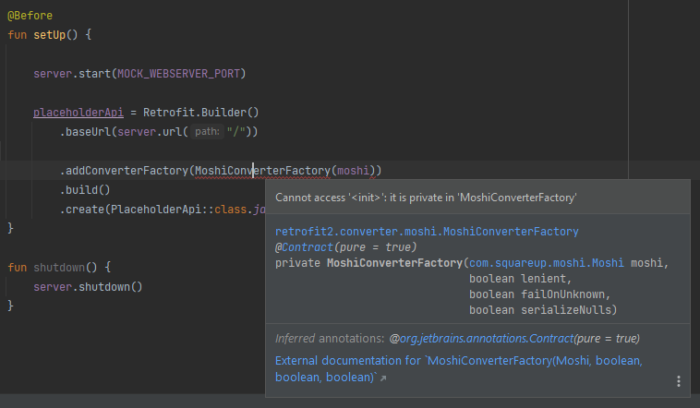
  • Cannot access ‘‘: it is private in ‘MoshiConverterFactory’ //Android Kotlin Dev Diary

    I’m starting a new category on my blog — Dev Diary, to document some of the errors that I encounter and what I did to fix them. I’m doing this in hopes of helping developers (including my future self!) as they work with code (and to get more blog visits! LOL). It’s nice to save time fixing a problem that you have already encountered and fixed before.

    Today’s problem:

    You are creating an instance of a class such as MoshiConverterFactory, but you get an error that says Cannot access '<init>': it is private in 'MoshiConverterFactory'

    The solution:

    Use the .create() method of the MoshiConverterFactory, like so:

    .addConverterFactory(MoshiConverterFactory.create(moshi))