Category: Android Development

  • Exception: No signature of method android() is applicable for argument types, Build Gradle // Dev Diary

    Today I wanted to make a data class a Parcelable so that I could pass it as an argument in Navigation component.

    Parcelables, though better in performance than Serializables, take more time to implement! To help us out, there’s a “kotlin-parcelize” plugin that can generate the boilerplate code for us.

    There were issues though.

    After applying the kotlin-parcelize plugin, I was getting the error:

    'kotlin-parcelize' can't be applied together with 'kotlin-android-extensions'

    So kotlin-parcelize is like a “successor” to the now deprecated 'kotlin-android-extensions' that I’m still using. So I replaced 'kotlin-android-extensions' with ‘kotlin-parcelize’.

    I got another error after attempting to sync with my Gradle files:

    org.gradle.api.GradleScriptException: A problem occurred evaluating project ':app'
    [...]
    Caused by: groovy.lang.MissingMethodException: No signature of method: build_54gmhuqjm83le8li4fspjsxlu.android() is applicable for argument types: (build_54gmhuqjm83le8li4fspjsxlu$_run_closure1) values: [build_54gmhuqjm83le8li4fspjsxlu$_run_closure1@3c374eea]
    	at build_54gmhuqjm83le8li4fspjsxlu.run([...]\app\build.gradle:11)
    

    The solution was to remove the following code from my android{} block:

    androidExtensions {
        experimental = true
    }

    After removing that, Gradle synced successfull!

    References:
    Parcelable implementation generator
    How to use @Parcelize now that kotlin-android-extensions is being deprecated?
  • Two-way data binding with StateFlow & BindingAdapters //Dev Diary

    I created BindingAdapters for an EditText like so:

    @BindingAdapter("android:text")
    fun setText(editText: EditText, inputAmount: MutableStateFlow<Double>) {
        if (editText.text.toString() != inputAmount.value.toString()) {
            editText.setText(inputAmount.value.toString())
            editText.setSelection(editText.text.length)
        }
    }
    
    @InverseBindingAdapter(attribute = "android:text")
    fun getText(editText: EditText): Double {
        if (editText.text.isEmpty()) return 0.0
        return editText.text.toString().toDouble()
    }


    My XML layout element looks like this:

                <com.google.android.material.textfield.TextInputEditText
                    android:id="@+id/tiet_input_amount"
                    android:layout_width="match_parent"
                    android:layout_height="wrap_content"
                    android:hint="@string/input_hint_amount"
                    android:inputType="numberDecimal"
                    android:text="@={viewModel._inputAmount}" />

    And in my ViewModel, the inputAmount is set up this way:

        val _inputAmount: MutableStateFlow<Double> = MutableStateFlow(0.0)
        val inputAmount: StateFlow<Double> = _inputAmount
  • Grant, revoke permissions via Android Studio Terminal (ADB Shell) // Android Dev Diary

    To grant and revoke permissions via Terminal (ADB Shell), run your app on an emulator (I haven’t personally tried on a device but it should work there too).

    Open your Terminal, and then enter the following command:

    adb shell

    Once you’re in, you may use the following syntax for granting or revoking your Android device’s permissions:

    pm grant <package-name> <permission>

    For example, to grant a permission:

    pm grant net.catzie.myapp android.permission.READ_EXTERNAL_STORAGE

    pm grant net.catzie.myapp android.permission.WRITE_EXTERNAL_STORAGE

    And to revoke a permission:

    pm revoke net.catzie.myapp android.permission.READ_EXTERNAL_STORAGE

    pm revoke net.catzie.myapp android.permission.WRITE_EXTERNAL_STORAGE

    Now there’s no need to open the settings screen on your device to play with your Android permissions!

  • Remove room database on app uninstall // Android Dev Diary

    The problem:

    Installing on an Android device that has an old version of an app I’m developing triggers an error:

    Room Database Migration: java.lang.IllegalStateException: Migration didn't properly handle

    Problem persists despite uninstalling the Android app and deleting all app data.

    The solution:

    Very simple. I set allowBackup to false in my AndroidManifest.xml file like so:

    android:allowBackup="false"

    Then I reinstalled the app on the Android device. Error was still triggered on first install, but after one more round of uninstall and reinstall, the error finally went away!

    Side Note / Quick Life Update:

    I have been working on an app, with me as its first user. I tentatively call it “bodymonitor”. It should let me log foods I ate, meds/supplements I took, and body sensations. My brain does not do a good job of monitoring these things so I shall get an app to help me do it. There are existing apps out there that do more or less the same thing, but I want one that caters to my specific needs. Doesn’t hurt to practice Android app development as I make the app, too!

    This weekend I’ll undergo endoscopy again, but this time it’s called a “flexible nasopharyngolaryngoscopy” which will pass through the nose instead of the mouth, to be done under local anesthesia. From the sound of it I don’t expect to be put to sleep, which makes me less anxious, but still anxious. XD It’s gonna be done because of my throat issues.

  • Get Navigation Component destinations in back stack // Android Kotlin Dev Diary

    It’s simple to get the list of destinations that’s currently in your back stack. The only thing you need is a reference to the Navigation Component’s NavController.

    The NavController object has a backQueue property that you can inspect.

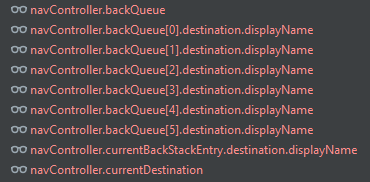
    backQueue is an array, and each item’s destination property is what you’re probably looking for!

    To show my current Navigation’s back stack, I use Android Studio’s Debugger, and create watches such as the following:

    Screenshot taking when no frames were available, and thus the texts are red…

    I haven’t literally tried, but logging them programmatically like so should work too:

    for(item in navController.backQueue){
        Log.d("MyNavigationBackStack", "item.destination.displayName: ${item.destination.displayName}")
    }
    Log.d("MyNavigationBackStack", "navController.backQueue: ${navController.backQueue}")
    Log.d("MyNavigationBackStack", "navController.currentBackStackEntry.destination.displayName: ${navController.currentBackStackEntry.destination.displayName}")
    Log.d("MyNavigationBackStack", "navController.currentDestination: ${navController.currentDestination}")

    Lemme know if these work, or if you have relevant tips that haven’t been mentioned!

  • A working shared ViewModel between parent and child Fragments //Android Kotlin Dev Diary

    I initially had a problem with the shared ViewModel because the child fragments were creating a new instance from the one held by the parent fragment.

    The ViewModel instantiations below work for me:

    CreateLogFragment.kt (parent)

    CreateLogFoodFragment.kt (child)

    CreateLogNotesFragment.kt (another child)

    by activityViewModels turned things around!

  • Two NavHosts with their own NavControllers and NavGraphs (Navigation Component) //Android Kotlin Dev Diary

    I am trying to make a single-activity app because I’d like to easily share data across screen using, ideally one, or as few as possible ViewModels.

    NavGraph 1

    Host: Layout file of MainActivity

    Destination(s): CreateLogFragment

    NavGraph 2

    Host: Layout file of CreateLogFragment

    Destination(s): CreateLogFoodFragment, CreateLogNotesFragment

    (CreateLogFragment has a BottomNavigationBar that switches between CreateLogFoodFragment and CreateLogNotesFragment)

    The problem was that NavGraph 2 was not getting the correct NavHost and NavController in the CreateLogFragment class.

    And the solution is to retrieve the NavHost in CreateLogFragment like so:

    override fun onViewCreated(view: View, savedInstanceState: Bundle?) {
    super.onViewCreated(view, savedInstanceState)

        val navHostFragment = childFragmentManager.findFragmentById(R.id.nav_host_create_log) as NavHostFragment
        val navController = navHostFragment.navController
    
        // Setup Bottom Nav
        val bottomNav: BottomNavigationView = binding.bottomNav
        bottomNav.setupWithNavController(navController)
    }

    I’d like to write a full tutorial on how to do this but I’m not sure if I could spare some time. If you’ve been reading my recent posts you’ll notice that I’m not able to put it so much effort in explaining everything. These days I’m always in a hurry to finish stuff. But I’ll still try!!

  • My Fave Android Studio Keyboard Shortcuts

    I have been working on small Android apps, and I just want to share some of my favorite keyboard shortcuts. Some of them were manually added by me.

    Keyboard shortcuts are one of my must-haves for productivity as a programmer, as they let me navigate through code faster, allowing me to focus on creating new modules and solving problems.

    Note: I am using Windows.

    Move between Code, Split, and Design when working on an XML layout file

    Alt + Shift + Left/Right Directional Button
    (If it doesn’t work, click on the layout file’s code/design first, then retry.)

    Run app in test device or emulator

    Shift + F10

    Run app in test device or emulator with Debugger

    Shift + F9

    Navigate between open tabs (no split):

    Navigate between points/screens that you’re viewing:

    Ctrl + Alt + Left/Right

    Show Parameter Info while filling in a function call

    Ctrl + P

    Maximize/minimize editor

    Ctrl + Shift + F12

    Created a custom shortcut for Close All Tabs:

    Ctrl + Alt + Shift + F4

    Created a custom shortcut for Rebuild Project:

    Ctrl + Alt + Shift + F10

    Created a custom shortcut to toggle Distraction-Free Mode on/off:

    Ctrl + Alt + Shift + D

    Created a custom shortcut to toggle ZenMode on/off:

    Ctrl + Alt + Shift + Z

    Other keyboard shortcuts: https://developer.android.com/studio/intro/keyboard-shortcuts

  • val vs. const //Kotlin Android Dev Diary

    Let’s start off by introducing val.

    To define a variable in Kotlin, you may use var or val:

    varval
    has a mutable value (changeable)has an immutable value (read-only)

    So we use val for immutable values, so what is the const keyword and what’s its difference from val?

    constval
    has an immutable value (read-only)has an immutable value (read-only)
    initialized at compile time onlyvalue may be assigned during runtime

    Other rules for const in Kotlin:

    • must be a top-level property or placed within a companion object
    • value must be a primitive type (can never have function or any class constructor as its value)
    • no custom getter
  • Dao Error: Not sure how to handle query method’s return type //Android Kotlin Dev Diary

    As I brush up on my Room database knowlege I came upon the following error while building my app:

    WordDao.java:21: error: Not sure how to handle query method's return type (java.lang.Object). DELETE query methods must either return void or int (the number of deleted rows).

    The solution:

    Set Kotlin version to 1.6.10 then Room to 2.4.2 (Or use more recent compatible versions) in my top-level build.gradle file.

    Reference: Android Room Kotlin throws Delete Query error