Tag: automation

  • Run command automatically after updating a file on Mac

    I get a kick out of automating things! Especially those seemingly easy extra steps that we do numerous times a day, everyday.

    There’s this configuration file that I frequently have to adb push into my test Android devices. And the cycle of editing the file, saving it, and then going to the terminal to run the push command (sometimes having to press the up ↑ key a few times) , is repeated as many times as needed.

    Last week, while rapidly becoming exhausted from the extreme summer heat, I was becoming frustrated at the bug I was trying to fix. Having to repeat the edit-save-push cycle on the file a countless number of times, along with the discomfort from sweaty armpits, wasn’t helpful in fixing the bug.

    I wondered, how do I automatically push this configuration file when unix detects a change in the file after editing and saving?

    What I did was rely on “entr”.

    I first installed it on my mac like so: brew install entr

    And then ran below command in my terminal:

    ls /Users/catz/Documents/MyConfigFile.json | | entr adb -e push /Users/catz/Documents/MyConfigFile.json /sdcard/Android/data/com.example.app/files/config/MyConfigFile.json

    /Users/catz/Documents/MyConfigFile.json is the configuration file I frequently edit and push.

    /sdcard/Android/data/com.example.app/files/config/MyConfigFile.json is the expected location of the file in my test Android device. The app reads the configuration from this location.

    Now, with this setup, I simply have to hit Save after editing the configuration file, and I just watch it automatically get pushed to my test Android device. 😎 My younger self probably would have tried to code her own script for automation, but my old, cranky present self knows better than waste time like that. Heh.

    Automating little things, such as having to push a changed file each and every time it’s edited, can have a big impact in one’s workflow. Streamlining mine this way allows me to use my little energy on what really matters.

    So, how did the bug squashing go?

    A quick background on the bug: StateFlow.update was not updating a value inside a list of data class model. I thought that a deep copy was what I needed, but it turned out that the data class contained an override function of equals and it was lacking a necessary logic to return the correct Boolean value. StateFlow.compareAndSet, which is called by StateFlow.update behind the scenes, does not proceed with updating the value, because the old and new value are seen as “equal” due to the overridden equals function not returning the correct result.

    I didn’t notice the faulty equals logic until I regained my calm focus on that hot workday — all thanks to a quick cool shower, and of course, the kick I got from setting up my command to automatically run after updating the configuration file~

    And yes, remember to try to feel comfortable as you do problem solving tasks! I think that feeling comfortable helps us keep a clear head, which consequently helps us solve problems more effectively.
  • Log the date & time each time you turn on your Windows computer

    Log the date & time each time you turn on your Windows computer

    In the morning, I sometimes forget the time I log into the time-tracking system in my workplace so I stay a bit longer to make sure I don’t get an “undertime”.

    I thought that my computer at work could help me with this issue somehow. I hoped there was a Windows program that can record the dates and times I turn my computer on. I tried searching for an application like this on Google but couldn’t find any, and wasn’t sure what keywords to search for. (^_^) Someone suggested that I make a Windows Batch File. And so after some web search I came up with this Windows Batch File, which I will later set up to be run each time Window starts.

    This Windows batch file doesn’t tell me exactly what time I came into the office, but it helps, because it logs the date and time I turned my computer on. And turning my computer on is the first thing I do on my office desk. 🙂

    What is a Windows batch file?

    How does this Windows batch file work?

    The Windows batch file is run every time Windows starts, and each time the file is run, it gets the current date and time then saves it into a file. Each time Windows starts, it creates one file with the date and time.

    Like I said, turning my computer on is the first thing I do when I arrive at the office, so the time in the text file written by the program gives me an idea of the approximate time I came in.

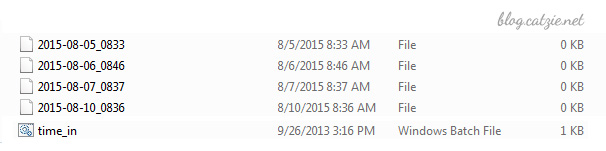
    Here’s a preview

    Save files with current date and time with Windows batch file
    Save files with current date and time with Windows batch file
    of the results:

    How to make a batch file that logs current date & time when Windows starts

    Before we begin, please note that I implemented this in a Windows 7 machine.

    Create a folder where you’d like the files to be created. Name it anything you like. I named mine “Time-in” since I’m using the batch file to estimate the time I come into the office.

    Open a text editor such as Notepad.

    Copy the following codes and then paste it into Notepad.

    Save it into the folder you created as “time_in.bat”

    Now, go to that folder and right click on the icon of “time_in.bat” then choose “Create Shortcut”.

    You’ll now see a new file “time_in.bat – shortcut”. Move that shortcut file into your Windows’ startup folder. My Startup folder is in C:\Users\MyUserName\AppData\Roaming\Microsoft\Windows\Start Menu\Programs\Startup so try looking for yours there.

    With what we have done, a file named with current date and time should be created in your folder each time you start Windows.

    Some notes when using this Windows batch file

    You will eventually have a folder with a large number of files because our batch file creates one file per Windows startup. Please find a way to manage those files. You may move older files into an archive folder, or you may delete older files that you no longer need.

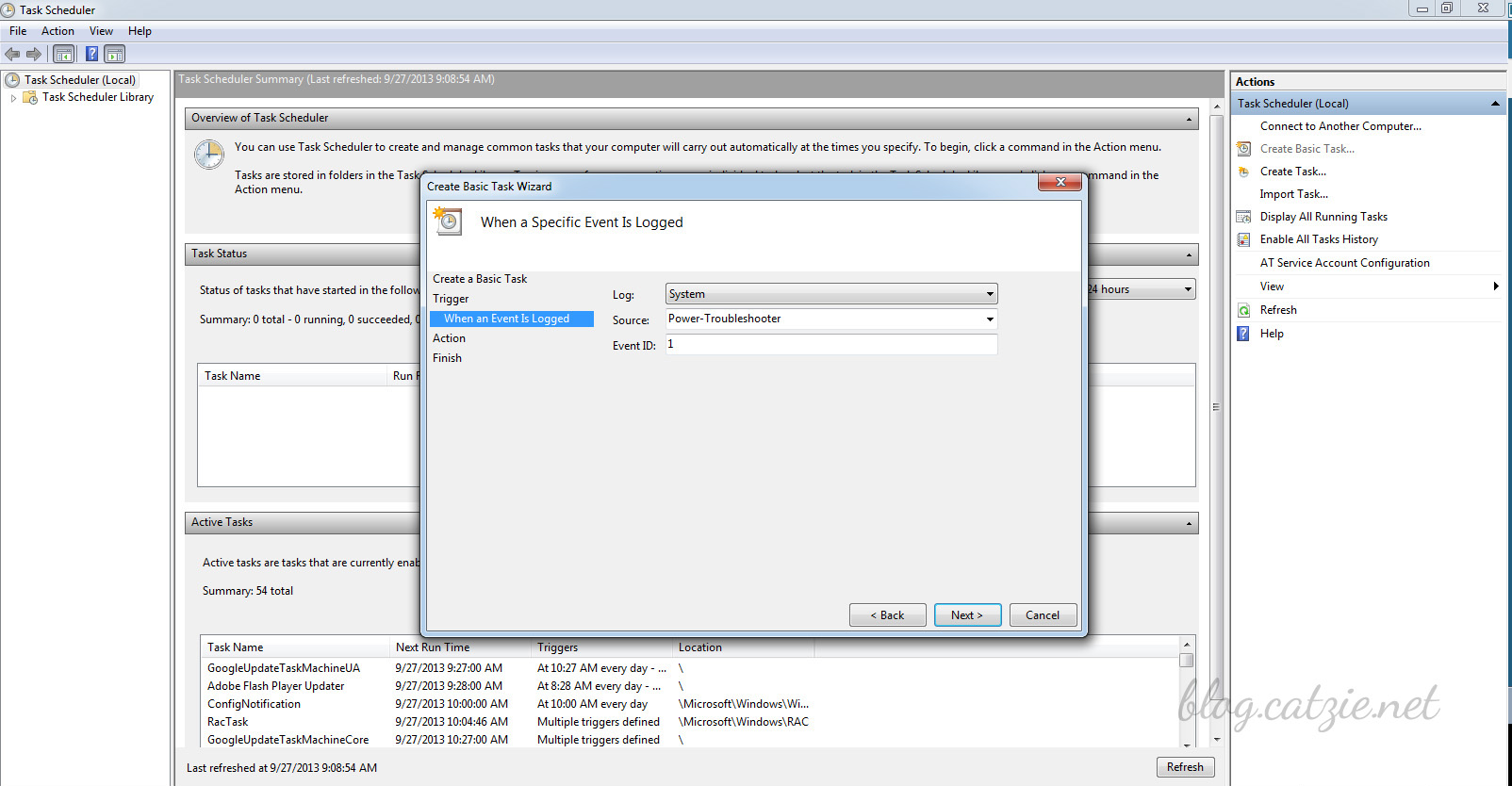
    Another note if you’ll use the batch file to track your office time in the morning like I do: the batch file will not create any file if you just hibernate your computer before leaving work instead of shutting down. This is because the “startup” only happens when you start Windows, and this does not happen when you wake your Windows up from hibernation. Possible solution for this may be creating a task in the Task Scheduler of Windows, making the “on wake up” the “trigger” and pointing to the batch file to let it execute. The following settings are what I’ve tried and nothing has worked yet so far… so maybe some of you may come up with a solution that will work. 🙂

    Task scheduler in Windows 7 for the batch file
    Task scheduler in Windows 7 for the batch file

    • Go to Task Scheduler
    • Create Basic Task
    • Fill out name and description
    • Start the task when a specific event is logged
    • Log: System
    • Source: Power-Troubleshooting (or try Kernel-Power with Event ID 42, or try Kernel-General with Event ID 1)
    • Event ID: 1
    • Action: Start a program (then choose program).
    • Finish

    The batch file’s function is good the way it is for me so I didn’t look further into it, but here’s a link to Trigger Task Scheduler in Windows 7 when computer wakes up from sleep/hibernate.