Hey! 🙂 This is a page I’m preparing quickly for developers who are used to the folder structure of Laravel 4 and older, just to serve as reference on where we can find things in Laravel 5 now.
If like me, you are new to Laravel 5 but have developed apps using older Laravel versions, you might also be a little confused with the new folder structure. Let the following table of data guide you. Don’t worry, after a while, I’m sure you’ll get used to the Laravel 5 folder structure. 🙂
You can still follow this tutorial if you’re using another version of Windows or if you’re using another Android device. You don’t strictly have to use a Windows 7 computer and an LG G3 phone. 🙂
Being a web developer and a frequent user of Android devices, I’ve always been curious about Android app development. I’m really happy that I’m finally able to create even the simplest Android app (i.e., displaying Hello World! lol) 😆
You are on this page most likely because you are just curious like me, or because you need to learn Android app development for school or work.
My development environment as I wrote this tutorial:
3-year-old ASUS laptop, 32-bit system, 4 GB RAM, Intel Core i5-2410M, 2.36GHz processor (Android Studio is slowing this laptop down significantly)
Windows 7 (you can use any other Windows version to follow this tutorial)
Android Studio 1.4
LG G3 as test device (you can use a different phone, of course)
How to say “Hello World!” on your first Android app
Make sure to check if you are using 32-bit or 64-bit Windows and download the appropriate installer version. The installers for 32-bit and 64-bit Windows are not interchangeable. In my office laptop I installed jdk-7u79-windows-x64.exe but since it is for 64 bit and incompatible with my 32-bit Windows at home, I downloaded jdk-7u79-windows-i586.exe from the source.
Install Android Studio.
When someone in your team, or when you download Android Studio completely for the first time, copy the sdk folder from this path and store it somewhere for future use:
C:\Users\YourUsername\AppData\Local\Android\Sdk
Please note that this can take a while. It took me about 30 minutes to finish copying in an old laptop that uses Intel Core i5 CPU.
The installation of Android Studio requires Internet connection for the contents of the sdk folder, and it will be trouble if you have a very slow connection to the Internet. It will be handy to keep a copy of the sdk folder as backup, so that every time you need to install Android Studio, you just have to “cancel” the download that doesn’t seem to end (when it says Downloading Android SDK Build-tools) and just paste the contents of your backup sdk folder into the folder where you are currently installing SDK into D:\Users\YourUsername\AppData\Local\Android\sdk. When you try to start a new project, you might run into an error saying “Your Android SDK is missing, out of date, or is missing templates.” To fix this, do the following:
Click OK to close the dialog then click Configure.
Click SDK Manager.
Find the field where you can Edit the path for your Android Studio SDK — click on “Edit”.
You probably see this message in red: “An existing Android SDK was detected. The setup wizard will only download missing or outdated SDK components.” Just keep on clicking Next until you can see a Finish button
Now, you can start a new Android project in Android Studio!
Press the back button and find the “Start a new Android Studio project” button.
Set your Application Name and Company Domain. Change Project Location if desired. These are up to you.
Click next.
Click next again, leaving only Phone and Tablet as our platform.
Select “Empty Activity” then click next.
Change “Activity Name” and “Layout Name” if desired (I leave them as is), then click Finish button. (It is taking ages for my project to load after creation. Ugh! :lol:)
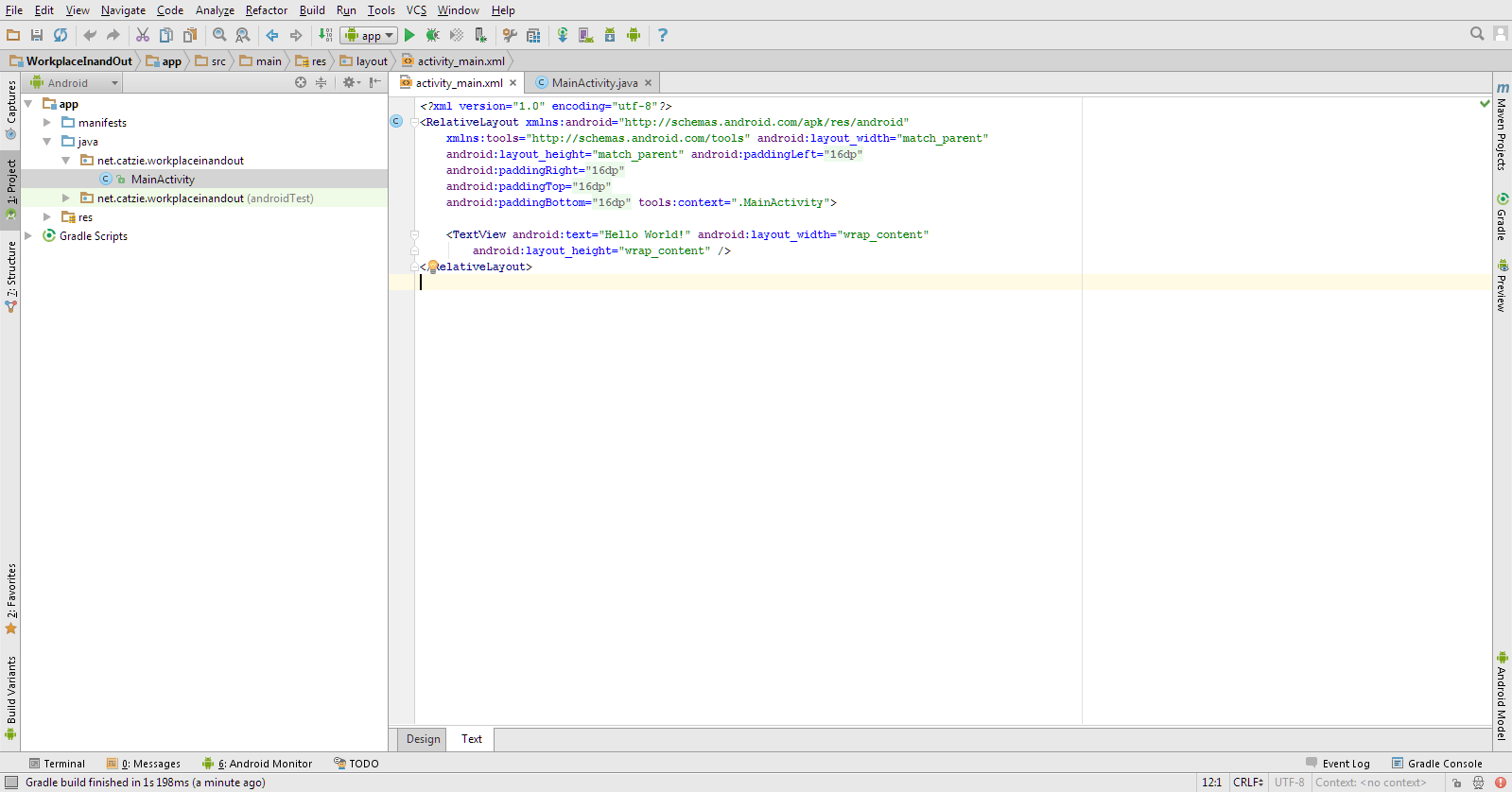
If Android Studio hasn’t opened MainActivity.java and activity_main.xml for you, then follow these steps:
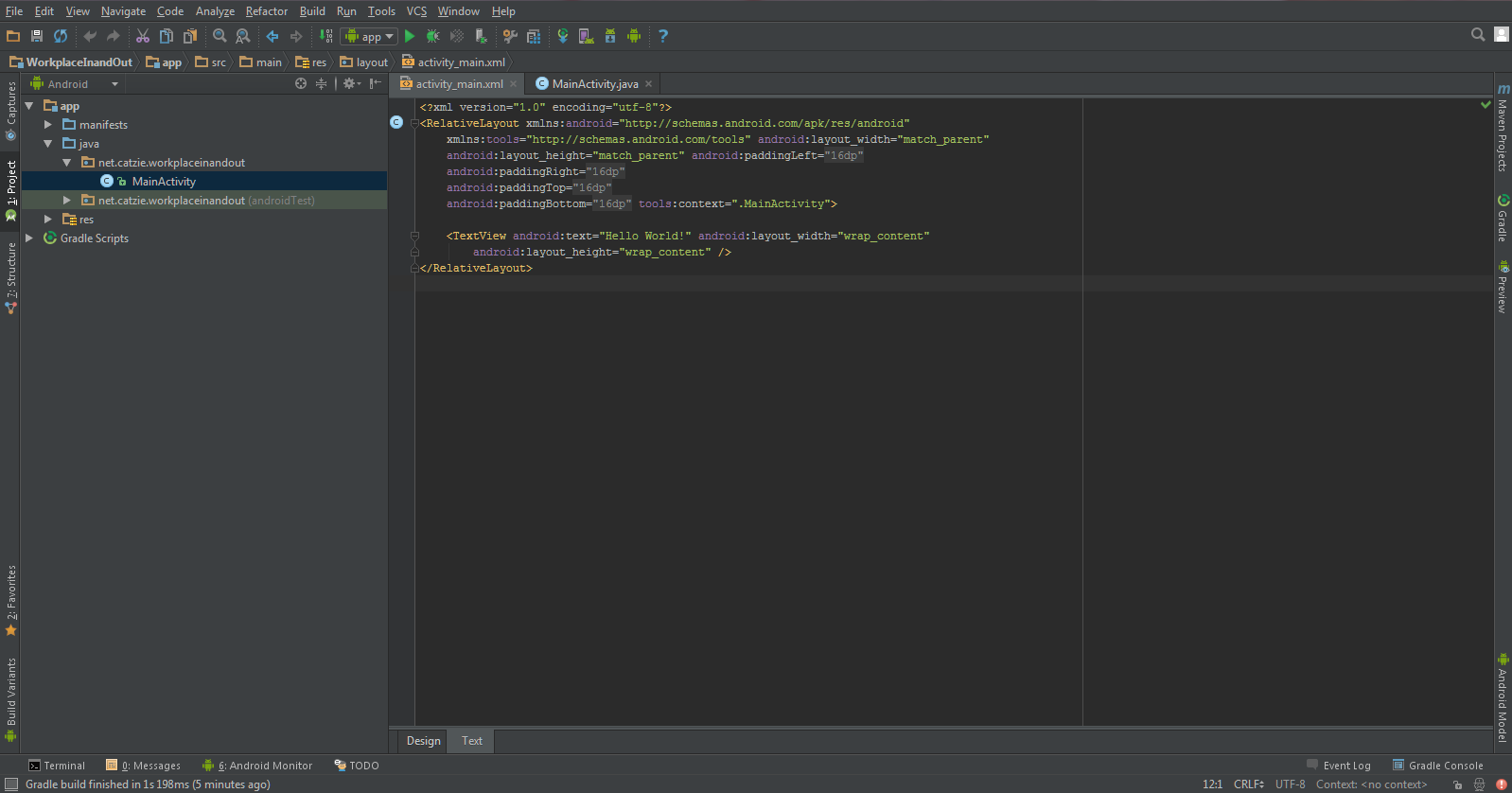
On the left side of the screen, click Project, then in the directory tree, navigate to app -> res-> layout then double click activity_main.xml to open it.
Make sure you are on the “Design” tab (at the bottom part there should be 2 tabs: Design and Text. Click Design.) This will show you a preview of the app that says Hello World!
If you see the “Hello World”, good! I would congratulate you, but if you’re like me, you probably didn’t feel any accomplishment in seeing that Hello World in your computer screen. After all, an Android app is supposed to be run in an Android device. You can stop here, or you can read the next steps as I guide you in setting up your computer, Android Studio, and Android device so that you can run the app you are developing in your phone or tablet.
Prepare your Android device for running your app.
Allow me to use the words “phone” and “device” interchangeably — just a little warning to keep you from being confused. 😆 After all, the “device” I’m using for this tutorial is a “phone” 🙂
Install PdaNetfor USB debugging of your phone (ADB driver):
Download PdaNet installer here. Just follow the instructions from the installer during the process. You need to finish this so that Android Studio can run apps on your phone.
Let me tell you how I successfully let my Android Studio run apps on my LG G3 phone…
While PdaNet was installing, I closed Android Studio (it consumes a huge portion of memory in mine) during the process, hoping my computer runs the pdanet installation a little faster.
After PdaNet was installed to my phone, I opened it and enabled the “Activate USB Tether” option.
When I run Android Studio again, with my MainActivity.java and activity_main.xml still open, I pressed Shift + F10 to attempt to run the app on my phone.
Yes, my LG G3 was listed as a connected device but Android Studio says that my device is offline.
To fix the “device is offline” problem, what I did was unplug my phone from the computer and then plug it back in. On my phone, there was a prompt to “Allow USB Debugging” and I allowed it. Then, pressing Shift + F10 again on Android Studio allowed me to choose my LG G3 phone. When I pressed OK, the Hello World! screen was displayed on my LG G3. 🙂
Your device is still not able to run your app from Android Studio? Try any of these:
Possible fix #1: Set connection mode on your phone from MTP to PTP
You probably read earlier that unplugging and plugging my device back into my computer let Android Studio detect my LG G3 as an online device. I realized that my connection was already set to PTP back then.
I tried switching to MTP and as a result, Android Studio took out my device from the list.
I switched back into PTP mode and Android Studio brought my device back to the list.
So, that confirmed that LG G3 needs to connect to the computer in PTP mode so that Android Studio can run apps in it.
Possible fix #2: Install LG program/driver(s)
When you plug your device into the computer, you’ll see something like “Connected as Media Device (MTP)”.
Go to your notifications panel and click on such notification.
A popup will appear: “Install PC programs required when connected to computer. -If you have installed on your computer, skip by checking Don’t show this again.” Then if you click OK, you’ll see “Installing PC programs. Please check your PC.”
On your computer you’ll see AutoPlay dialog, click on Run_LG_PC_Programs.exe.
Now on your computer you’ll see “LG USB driver for LG phone is being installed”. KEEP THE DEVICE CONNECTED TO YOUR COMPUTER DURING THIS PROCESS!
When done, you’ll see a message in the computer: “The drivers for LG phone are now installed. You can connect your PC and phone.”
Click OK.
(If you’re using an LG phone and if this doesn’t work try to install LG drivers from this link too …I had to download that one for my phone to work on my office laptop’s Android Studio. )
Other notes
Each time you run the app, an APK file is generated in app/folder/app/build/outputs/apk/
Thanks, acknowledgement, sources…
Thanks to my office friends Nethki, Allen, and Peng for ideas and guidance, as well as to my boyfriend. 🙂 I probably couldn’t have started anything at all without you all. 😀
For a web developer who used mostly PHP and JavaScript for several years, plunging into Java can be challenging especially when it comes to data types.
PHP and JavaScript are loosely typed languages, while Java is strict about types.
I was told that in Android, List<String> is very commonly used, even more than arrays. And now I’ve come to the point when I need to use a 2-dimensional List<String>.
You might feel more comfortable with a dark theme in Android Studio, but the default theme is light in color.
Default light theme in Android Studio
I’m one of the developers who always code in dark screens since it’s less tiring to the eyes.
Android Studio dark theme — Darcula
If you’re like me who prefers dark themes while coding, then I’ll show you how to change into a dark theme called Darcula in Android Studio here. (more…)
I’m trying to learn how to build a simple app in Android just to satisfy my curiosity. This will also be a very handy skill because I use Android phones often, and there are times that the apps I download from Google Play Store lack features that I need.
This will be a very simple guide on how to change app name in Android Studio, something that most beginners in Android development probably want to know.
It is assumed in this guide that you have prior knowledge in coding.
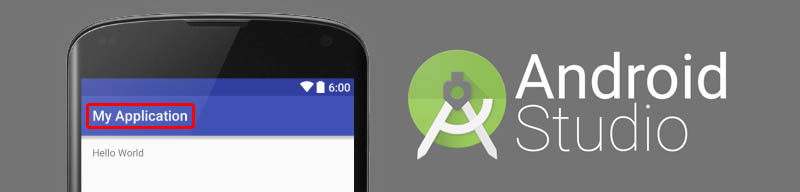
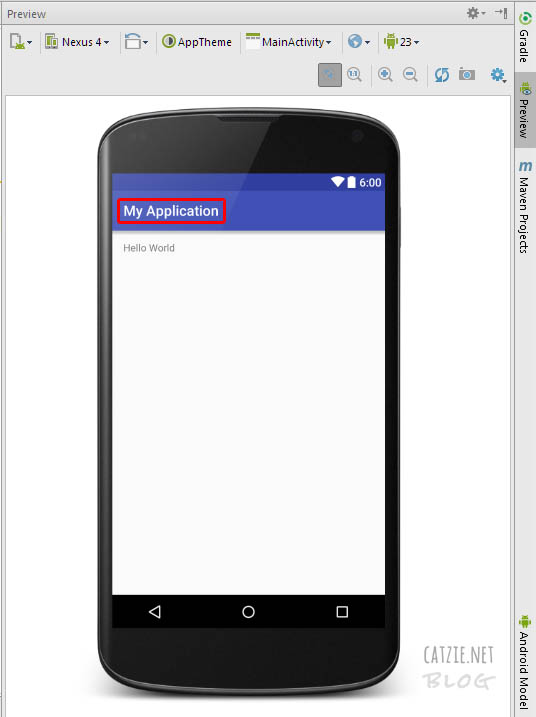
The app name that I’m referring to is the one that says “My Application”, as marked on the image below:
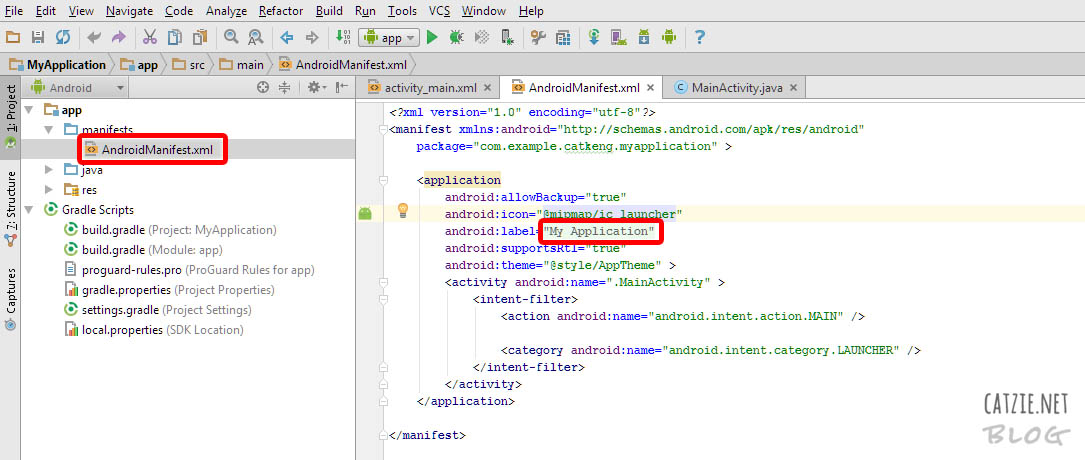
To change that, go to your Project and find the app folder. Under app, find AndroidManifest.xml and edit android:label="My Application", replacing “My Application” with the name you’d like to use.
Refer to the image below:
Your changed app name should be reflected in the live preview now, if you have it activated. If you don’t have live preview yet, check this out: Where is Android Studio layout preview?
Updates…
How to rename project folders of Android Studio
You may also want to change the name of your Android app’s folder. Check this folder, it’s probably where your Android project folder is located — C:\Users\catkeng\AndroidStudioProjects\
How to rename package in Android Studio
Right-click on your package name in the Project tree. It’s probably under app->java. Then choose “Refactor”, then choose “Rename”. Take note that you’ll see “Rename package” and “Rename folders” button here — you might need to go back to this screen later to click “Rename folders”. For now, click the “Rename package” button. Type the new name that you want to use, then click “Refactor”. If that hasn’t changed all package name instances for you, follow the same steps until you can click “Rename folders” button too. That should do it!
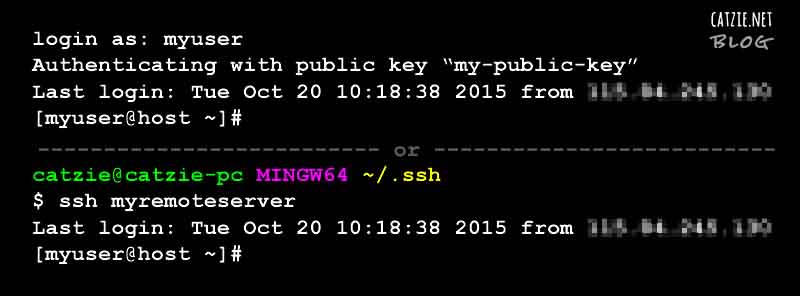
We access remote Linux servers everyday from our Windows computers. Having different servers for different projects, it can be difficult having to enter the passwords over and over in everyday. And so, I suggest that we use SSH Keys instead for authentication to save us some time and boost productivity. SSH keys should also make logins more secure than passwords — just be careful when someone else uses your computer.
I’ll show you two methods that we can use to connect to our Linux servers using SSH keys and without a password.
I personally like using Git Bash to connect via SSH to our server because it’s done in fewer steps than when using PuTTY, but in this tutorial I will first show you password-less connection to SSH via PuTTY.
Method 1: SSH Connection without password in PuTTY
Download PuTTY from the PuTTY Download Page if you haven’t yet. No installation is required — you just run this .exe file when you need it.
You also need PuTTYgen so if you don’t have it yet, download PuTTYgen from the PuTTY Download Page. This is the PuTTY Key Generator, and will be used to generate a key later. Like putty.exe, no installation is needed for this.
Right click on puttygen.exe then run it.
Make sure that under Parameters, SSH-2 RSA is selected, then click the Generate button. Move your mouse pointer all over the blank area to hasten the key generation.
In PuTTY Key Generator, click “Save public key” and save it as a .txt file.
Still in PuTTY Key Generator, click “Save private key” and save it as a .ppk file. It’s recommended for you to save a passphrase for the private key.
Now, run PuTTY. Go to Connection -> SSH -> Auth. Click the browse button to find and select the private key (.ppk file) that you saved in the previous step.
From Connection, go to Session so that you can connect to the Linux server via SSH. Enter the host name or IP address then click Open.
Enter your username.
You should be logged in now without being prompted for password. I think you need to select the .ppk file under Connection -> SSH -> Auth each time you will log in.
Method 2: SSH Connection without username & password in Git Bash
Install Git on your Windows computer if you haven’t yet. Download Git here. During setup, I didn’t change any setting aside from ticking the “Enable file system caching” checkbox.
If a .ssh folder doesn’t exist yet under C:\Users\<YOUR-WINDOWS-USERNAME>\ then please create it. (I used the browser for Local Site in FileZilla to create .ssh folder)
While inside the .ssh window, right click then choose Git Bash Here.
Run this command: ssh-keygen -t rsa -C "[email protected]", then type the file name for your key (we’ll use this in a config file later), and then type the passphrase that you want to use, twice.
Create a file named config, with no extension name, under the .ssh folder. (FileZilla’s browser for Local Site might help again)
Paste the following into the config file and edit as necessary. <NAME_OF_SSH_KEY> should be the file name you typed earlier after the ssh-keygen command.
1
2
3
4
Host<LABEL_FOR_CONNECTION>
HostName<HOST_NAME>
User<USERNAME>
IdentityFile~/.ssh/<NAME_OF_SSH_KEY>
Open the .pub key file that you just generated in C:\Users\<YOUR-WINDOWS-USERNAME>\.ssh\ and copy its contents.
Edit the Linux server’s authorized_key file in the .ssh folder (e.g. /home/username/.ssh), and paste the key from the .pub file into it. If the .ssh folder or authorized_key file do not exist yet, create a .ssh folder with permission 700, then create the file authorized_key with permission 600.
Run Git Bash then enter this command: ssh <LABEL_FOR_CONNECTION> The label for connection should be as set in the config file. If you set a passphrase, you will be prompted for that too.
Just run the same command in Git Bash each time you want to start the connection.
Resources:
Let me link to the web pages that helped me complete this tutorial:
HOW TO PASSWORDLESS SSH LOGIN – Server Mom explains how passwordless SSH connections work and will teach you how to implement a Linux to Linux or Windows to Linux connection. This page mostly helped me with Method 1: PuTTY.
With this tutorial you’ll see how we can place a Google map with search box on your web page, and then get coordinates (i.e. latitude and longitude) based on where you click or where you drag and drop the marker into. The JavaScript API of Google Maps will help us achieve this.
This kind of map will be useful if you want to save coordinates from a Google map into your database. For example, if you’d like to save coordinates of a user-defined location, you can incorporate this map into your registration process — ask your users to point the marker to their location by clicking on the map or by dragging then dropping the marker.
There will be two types of icons in this map. First, a red default marker. Wherever you move it, we’ll get the coordinates that it points to. Second, white square markers which will appear to point to the location you searched for using the search box.
Map Demo
Try the map below — this is more or less how our map will look like later at the end of this tutorial. 🙂 Please read on and soon I’ll share the codes with you.
Get coordinates from Google Map
Latitude:Longitude:
Click on any point or drag the marker to get coordinates.
This tutorial will cover the following:
Google map on a web page
Search box for map
Get map coordinates on click
Get map coordinates on drag and drop of the marker
And you will need these:
Familiarity with HTML and JavaScript
Internet connection
Google account
Development environment (I used XAMPP on Windows 7 for this)
In the morning, I sometimes forget the time I log into the time-tracking system in my workplace so I stay a bit longer to make sure I don’t get an “undertime”.
I thought that my computer at work could help me with this issue somehow. I hoped there was a Windows program that can record the dates and times I turn my computer on. I tried searching for an application like this on Google but couldn’t find any, and wasn’t sure what keywords to search for. (^_^) Someone suggested that I make a Windows Batch File. And so after some web search I came up with this Windows Batch File, which I will later set up to be run each time Window starts.
This Windows batch file doesn’t tell me exactly what time I came into the office, but it helps, because it logs the date and time I turned my computer on. And turning my computer on is the first thing I do on my office desk. 🙂
What is a Windows batch file?
How does this Windows batch file work?
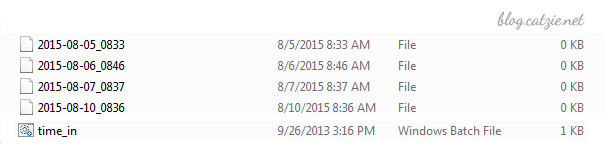
The Windows batch file is run every time Windows starts, and each time the file is run, it gets the current date and time then saves it into a file. Each time Windows starts, it creates one file with the date and time.
Like I said, turning my computer on is the first thing I do when I arrive at the office, so the time in the text file written by the program gives me an idea of the approximate time I came in.
Here’s a preview Save files with current date and time with Windows batch fileof the results:
How to make a batch file that logs current date & time when Windows starts
Before we begin, please note that I implemented this in a Windows 7 machine.
Create a folder where you’d like the files to be created. Name it anything you like. I named mine “Time-in” since I’m using the batch file to estimate the time I come into the office.
Open a text editor such as Notepad.
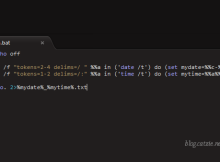
Copy the following codes and then paste it into Notepad.
Save it into the folder you created as “time_in.bat”
Now, go to that folder and right click on the icon of “time_in.bat” then choose “Create Shortcut”.
You’ll now see a new file “time_in.bat – shortcut”. Move that shortcut file into your Windows’ startup folder. My Startup folder is in C:\Users\MyUserName\AppData\Roaming\Microsoft\Windows\Start Menu\Programs\Startup so try looking for yours there.
With what we have done, a file named with current date and time should be created in your folder each time you start Windows.
Some notes when using this Windows batch file
You will eventually have a folder with a large number of files because our batch file creates one file per Windows startup. Please find a way to manage those files. You may move older files into an archive folder, or you may delete older files that you no longer need.
Another note if you’ll use the batch file to track your office time in the morning like I do: the batch file will not create any file if you just hibernate your computer before leaving work instead of shutting down. This is because the “startup” only happens when you start Windows, and this does not happen when you wake your Windows up from hibernation. Possible solution for this may be creating a task in the Task Scheduler of Windows, making the “on wake up” the “trigger” and pointing to the batch file to let it execute. The following settings are what I’ve tried and nothing has worked yet so far… so maybe some of you may come up with a solution that will work. 🙂
Task scheduler in Windows 7 for the batch file
Go to Task Scheduler
Create Basic Task
Fill out name and description
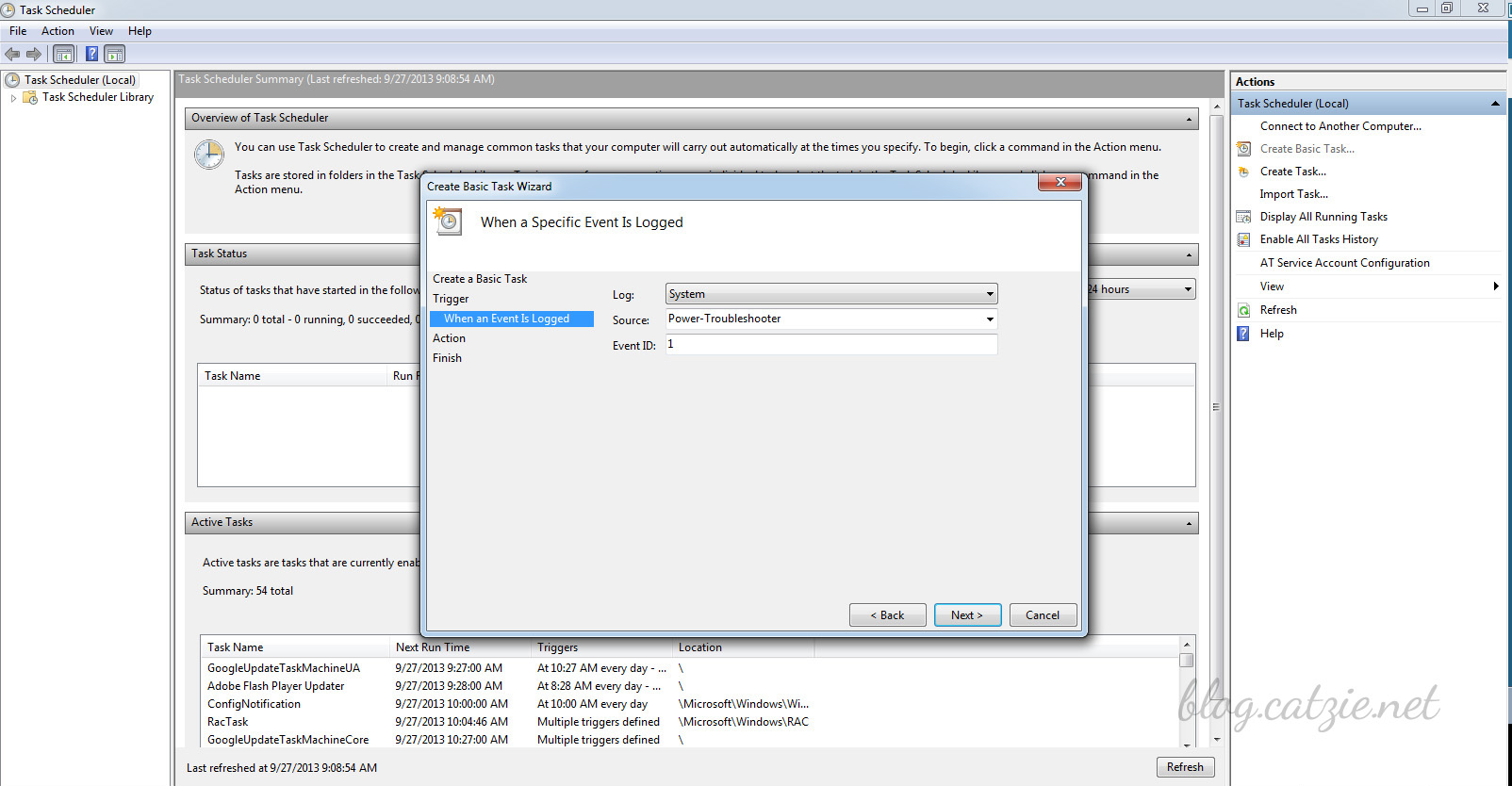
Start the task when a specific event is logged
Log: System
Source: Power-Troubleshooting (or try Kernel-Power with Event ID 42, or try Kernel-General with Event ID 1)
You’ve seen how some popular websites let you register or login via Facebook — Pinterest, Vimeo, Lifehacker, and many more.
In this blog post, I’ll show you the very basic setup of the Facebook login button for your website. It is up to you to enhance the functions of your registration system.
Note: There are periodic updates to the Facebook API, sometimes resulting to issues with previously working implementations of the API. So please note that this tutorial was written in the third week August 2015. 🙂
I began writing this tutorial late in August, but because of other projects, was able to publish it when it’s already September.

 which will appear to point to the location you searched for using the search box.