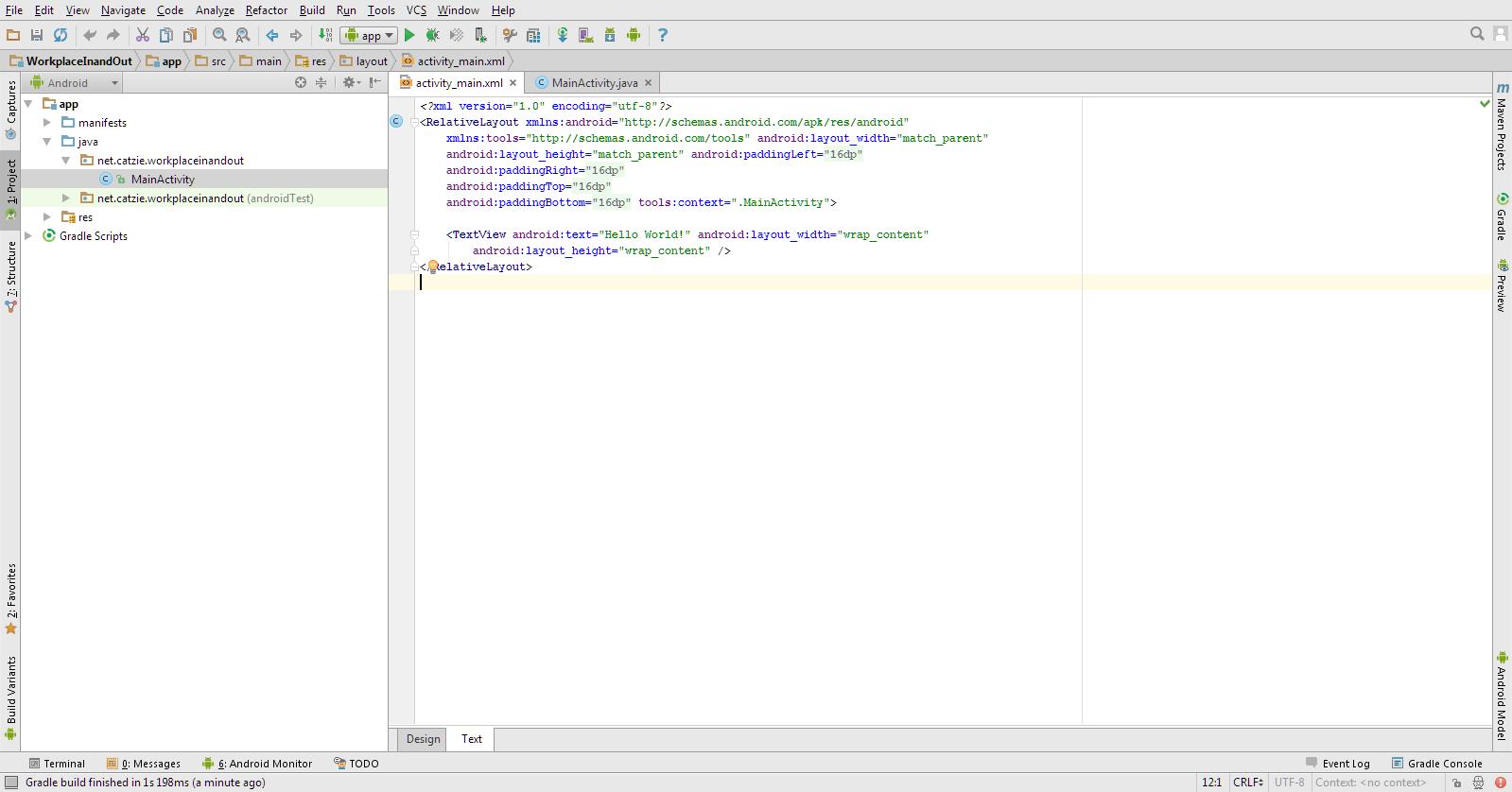
You might feel more comfortable with a dark theme in Android Studio, but the default theme is light in color.
Default light theme in Android Studio
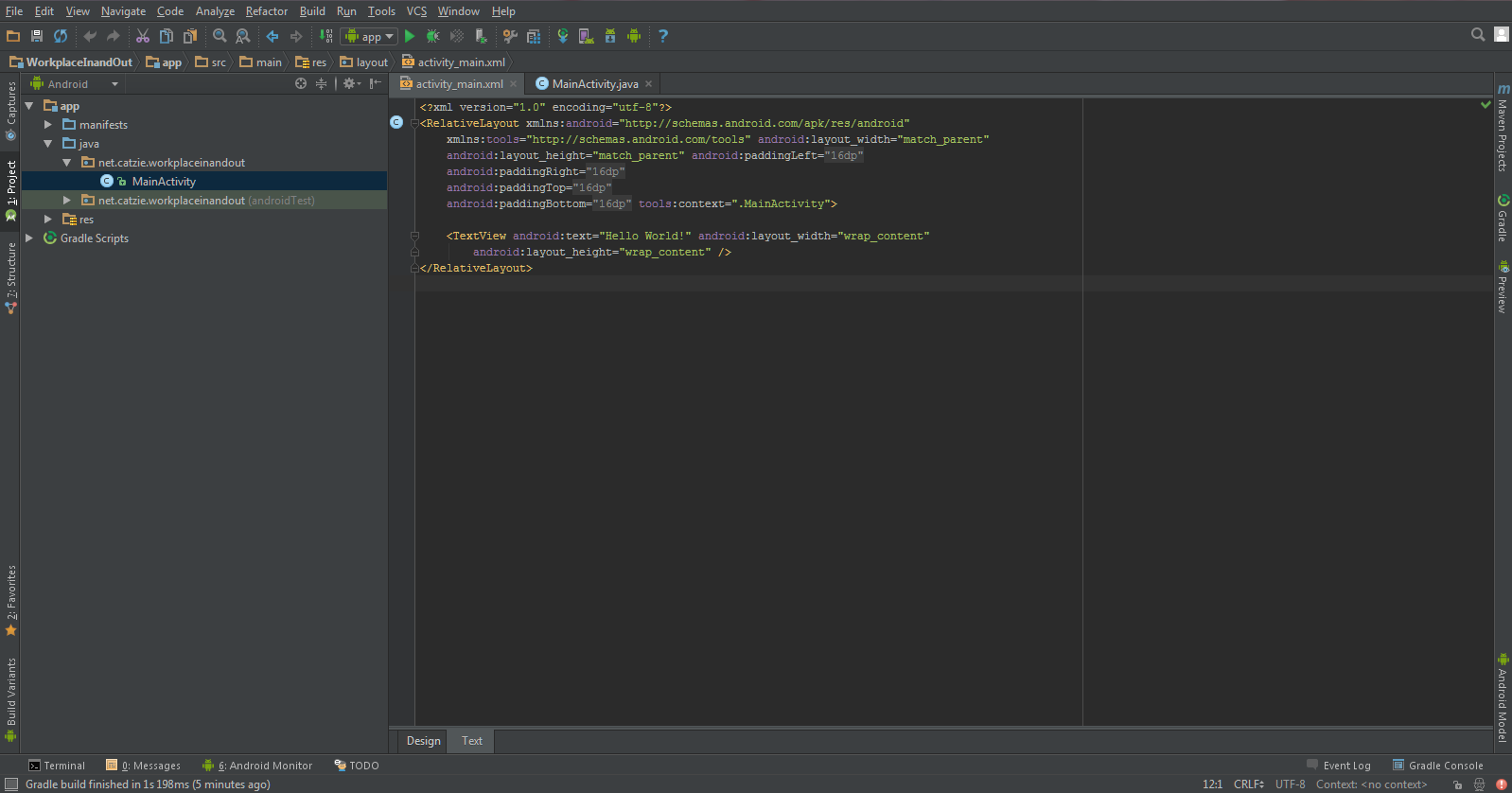
I’m one of the developers who always code in dark screens since it’s less tiring to the eyes.
Android Studio dark theme — Darcula
If you’re like me who prefers dark themes while coding, then I’ll show you how to change into a dark theme called Darcula in Android Studio here. (more…)
With this tutorial you’ll see how we can place a Google map with search box on your web page, and then get coordinates (i.e. latitude and longitude) based on where you click or where you drag and drop the marker into. The JavaScript API of Google Maps will help us achieve this.
This kind of map will be useful if you want to save coordinates from a Google map into your database. For example, if you’d like to save coordinates of a user-defined location, you can incorporate this map into your registration process — ask your users to point the marker to their location by clicking on the map or by dragging then dropping the marker.
There will be two types of icons in this map. First, a red default marker. Wherever you move it, we’ll get the coordinates that it points to. Second, white square markers which will appear to point to the location you searched for using the search box.
Map Demo
Try the map below — this is more or less how our map will look like later at the end of this tutorial. 🙂 Please read on and soon I’ll share the codes with you.
Get coordinates from Google Map
Latitude:Longitude:
Click on any point or drag the marker to get coordinates.
This tutorial will cover the following:
Google map on a web page
Search box for map
Get map coordinates on click
Get map coordinates on drag and drop of the marker
And you will need these:
Familiarity with HTML and JavaScript
Internet connection
Google account
Development environment (I used XAMPP on Windows 7 for this)
In the morning, I sometimes forget the time I log into the time-tracking system in my workplace so I stay a bit longer to make sure I don’t get an “undertime”.
I thought that my computer at work could help me with this issue somehow. I hoped there was a Windows program that can record the dates and times I turn my computer on. I tried searching for an application like this on Google but couldn’t find any, and wasn’t sure what keywords to search for. (^_^) Someone suggested that I make a Windows Batch File. And so after some web search I came up with this Windows Batch File, which I will later set up to be run each time Window starts.
This Windows batch file doesn’t tell me exactly what time I came into the office, but it helps, because it logs the date and time I turned my computer on. And turning my computer on is the first thing I do on my office desk. 🙂
What is a Windows batch file?
How does this Windows batch file work?
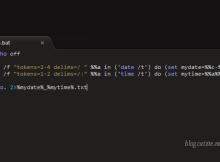
The Windows batch file is run every time Windows starts, and each time the file is run, it gets the current date and time then saves it into a file. Each time Windows starts, it creates one file with the date and time.
Like I said, turning my computer on is the first thing I do when I arrive at the office, so the time in the text file written by the program gives me an idea of the approximate time I came in.
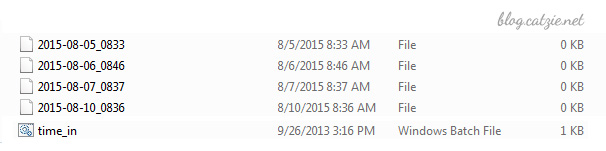
Here’s a preview Save files with current date and time with Windows batch fileof the results:
How to make a batch file that logs current date & time when Windows starts
Before we begin, please note that I implemented this in a Windows 7 machine.
Create a folder where you’d like the files to be created. Name it anything you like. I named mine “Time-in” since I’m using the batch file to estimate the time I come into the office.
Open a text editor such as Notepad.
Copy the following codes and then paste it into Notepad.
Save it into the folder you created as “time_in.bat”
Now, go to that folder and right click on the icon of “time_in.bat” then choose “Create Shortcut”.
You’ll now see a new file “time_in.bat – shortcut”. Move that shortcut file into your Windows’ startup folder. My Startup folder is in C:\Users\MyUserName\AppData\Roaming\Microsoft\Windows\Start Menu\Programs\Startup so try looking for yours there.
With what we have done, a file named with current date and time should be created in your folder each time you start Windows.
Some notes when using this Windows batch file
You will eventually have a folder with a large number of files because our batch file creates one file per Windows startup. Please find a way to manage those files. You may move older files into an archive folder, or you may delete older files that you no longer need.
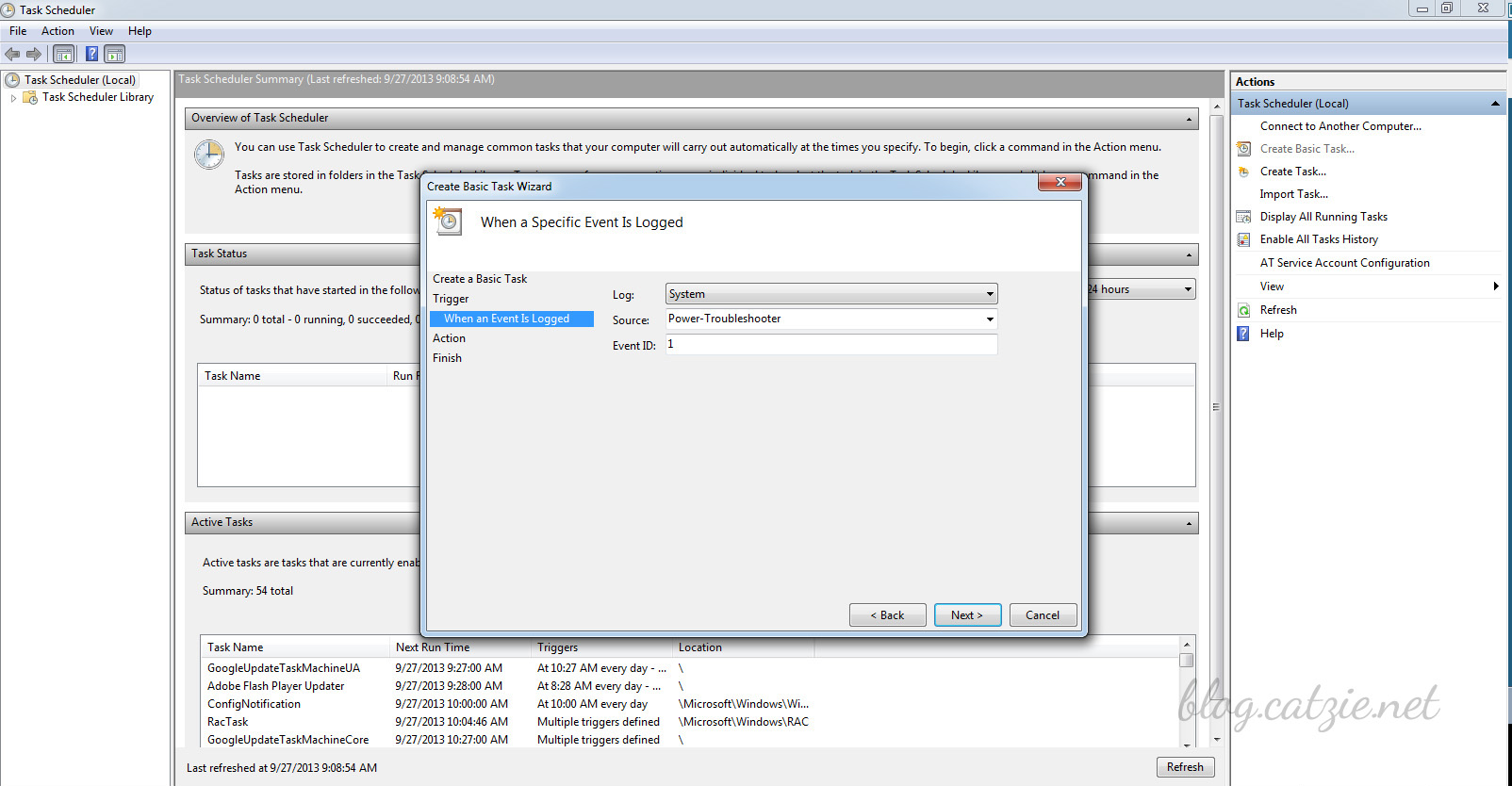
Another note if you’ll use the batch file to track your office time in the morning like I do: the batch file will not create any file if you just hibernate your computer before leaving work instead of shutting down. This is because the “startup” only happens when you start Windows, and this does not happen when you wake your Windows up from hibernation. Possible solution for this may be creating a task in the Task Scheduler of Windows, making the “on wake up” the “trigger” and pointing to the batch file to let it execute. The following settings are what I’ve tried and nothing has worked yet so far… so maybe some of you may come up with a solution that will work. 🙂
Task scheduler in Windows 7 for the batch file
Go to Task Scheduler
Create Basic Task
Fill out name and description
Start the task when a specific event is logged
Log: System
Source: Power-Troubleshooting (or try Kernel-Power with Event ID 42, or try Kernel-General with Event ID 1)
You’ve seen how some popular websites let you register or login via Facebook — Pinterest, Vimeo, Lifehacker, and many more.
In this blog post, I’ll show you the very basic setup of the Facebook login button for your website. It is up to you to enhance the functions of your registration system.
Note: There are periodic updates to the Facebook API, sometimes resulting to issues with previously working implementations of the API. So please note that this tutorial was written in the third week August 2015. 🙂
I began writing this tutorial late in August, but because of other projects, was able to publish it when it’s already September.
Edit: Seems like there’s something missing in the code I inserted. I only found out after further system testing. Will update this post when I feel like fixing it. :p
I’m taking an E-Commerce class (it’s my last school term!) and my group’s project in an online store that uses OpenCart, an open-source shopping cart software. Our professor wants us to have transaction numbers (invoice ID, in OpenCart) that are not simply the increment of the previous one (0001, 0002, 0003, …).
It took me long to figure out how to edit the invoice ID that OpenCart generates. In the settings page of the admin area we can only edit the prefix (default is INV) and the starting invoice ID (default is 001). When I change either of the two fields the invoice ID that is generated doesn’t change at all. After some research I found out that (more…)


 which will appear to point to the location you searched for using the search box.