An acquaintance applied for a National Statistics Office (NSO) Birth Certificate delivery service online at their website, and I just wanna share on this blog entry how it went.
Before anything else, this is not an official NSO website, and that everything that is written here is based on someone’s experience as he applied for an NSO birth certificate. So, your own experience with the online application for NSO birth certificate delivery service may or may not be different from what is written here. 🙂
NSO Birth Certificate Delivery Service Requirements
Online (live chat) or phone call application
Birth certificate information and other personal information of the birth certificate’s owner (click to jump to info needed)
Payment for NSO birth certificate after acquiring a reference number
Valid ID with picture for receiving the birth certificate on the day it’s delivered to you
Cost / Fee / Amount of Payment for NSO Birth Certificate Delivery Service
So, how much does the NSO birth certificate delivery service cost? 330 pesos is charged for each copy of an NSO birth certificate. This already includes delivery charge. Please note that processing is 2 – 3 working days after payment. So it is best to pay soon after getting the reference number.
Now I’ll talk about the experience with NSO’s delivery service. It might give people curious about the process/sytem some idea how it goes.
NSO Birth Certificate Delivery – Options for Application / Request
There are two options: Call 737-1111 or do a live chat with a Customer Care Officer. If you prefer typing over speaking to an NSO representative, I suggest you for the live chat.
Required birth certificate info before the live chat with NSO representative
Before actually chatting with an NSO representative, the applicant was asked for the following info:
This post is all about the application for an SS Number from SSS (Social Security System).
The other day I was at the Caloocan office of SSS to get an SS number. It took me one hour. It should not have taken so long if it wasn’t because of the queue.
PLEASE NOTE:During my application for an SS number, I had to submit photocopies of my ID’s and present the original copies. You might want to photocopy your ID’s, just to avoid inconvenience.
2015 Update: part of NBI Clearance process can now be done online!
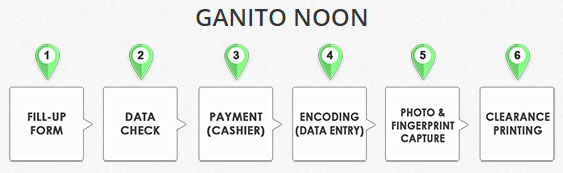
The old NBI Clearance process was long and mostly manually done: fill-up form, data check, payment at cashier, data encoding, photo & fingerprint capture, and finally, the printing of NBI Clearance.
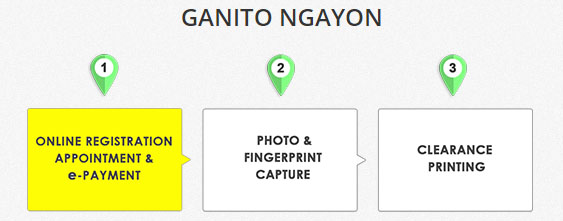
But now, they compressed the processes in 3 steps:
The new process begins with Online registration, appointment, and e-payment, which we can do without visiting an NBI branch. For our Photo & fingerprint capture, we then go to an NBI branch. Printing of NBI Clearance is done after the photo and fingerprint capture.
Much simpler process, right? If you have any trouble, you may contact with NBI Clearance staff via the following numbers during work hours (Monday to Friday, 9AM to 5PM). They were taken from NBI Clearance website on October 4, 2015:
GLOBE NUMBERS: 09179999421 / 09179999418
SMART NUMBERS: 09204129999 / 09995699964
And just a comment – Wow, 8 hours lang sila? Ang convenient siguro ng 9 to 5 lang nasa office.
How to register online for NBI Clearance in 2015?
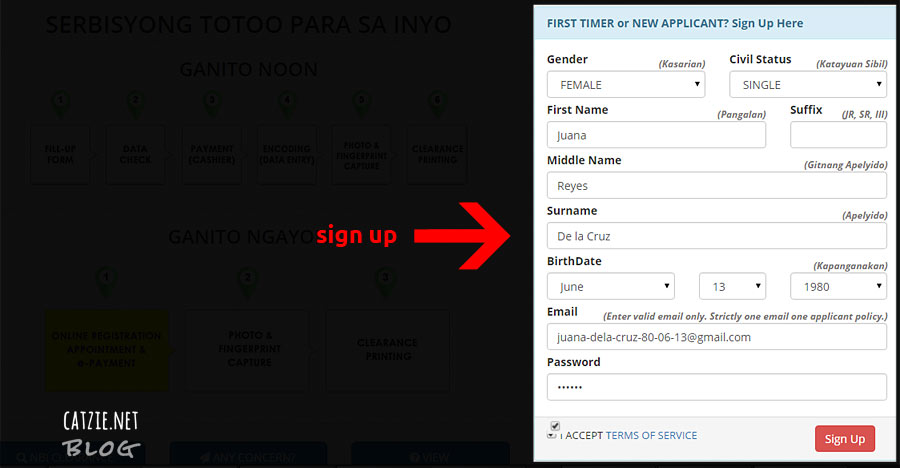
First, you need to fill up the online form like in the screenshot below. Don’t forget to click the checkbox for “I ACCEPT TERMS OF SERVICE”.
NBI Clearance sign up form online. Click to enlarge
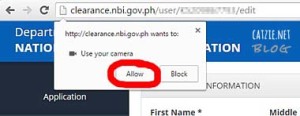
After clicking the Sign Up button, you will be taken to a new page. In this page, you can set your picture. You can upload a photo from your computer, or take a photo straight from your webcam. If you want to take a photo with your webcam, you must first click “Allow” when your web browser asks permission to activate your webcam.
To set your photo, click on the “Change Photo” button on the top right part of the page. It’s up to you, you can choose “take picture” with your webcam right then and there, or upload photo from your computer if you have a nice photo of yourself saved in there. 🙂
When you’re in that page, it’s time to complete your personal details. All fields with an asterisk (*) are required.
Now, enter your birth place and citizenship under “Application Information”.
Under “Contact Details” section, you are required to enter your complete “Address” and “Mobile” number.
And under “Family Background” section, you must enter your father’s name, his birth place, your mother’s name, and her birth place.
Finally, under “Other Information” section, you need to enter your Educational Attainment (kung ano’ng natapos mo), occupation, religion, height in centimeters (Note: 1 foot = 30.48 cm, 1 inch = 2.54 cm), weight in kilograms (Note: 1 pound = 0.453592 kg), complexion, and identifying marks (e.g. mole or scar on cheek).
When you have entered info on every required field, click the “Save Information” button.
If you’re okay with all the information you entered, you may now apply for an NBI Clearance. Click “APPLY FOR CLEARANCE” button on the top right of the page.
A box for your confirmation will pop up. Select NEW or RENEW under Application Type. If you already received an NBI Clearance before, choose RENEW. If this is your first time, choose NEW. For the Presented ID field, enter the name or ID number of the valid ID that you plan to present. This can be your passport number, driver’s license number, voter’s ID, postal ID, SSS, GSIS, PhilHealth, Senior Citizen number, etc. Click the button to submit.
Done? Now we go to the billing process. The NBI site reminds us the following:
Your REGISTRATION CODE or REFERENCE NUMBER will be provided after you select your PAYMENT OPTION.
Your REFERENCE NUMBER shall be your GATE PASS when you enter NBI Clearance Centers.
To avoid inconvenience and long lines, please pay your NBI CLEARANCE FEE using your REFERENCE NUMBER at the selected PAYMENT OPTION. If you wish to pay over-the-counter at NBI, please bring your unpaid REFERENCE NUMBER for auto-encoding.
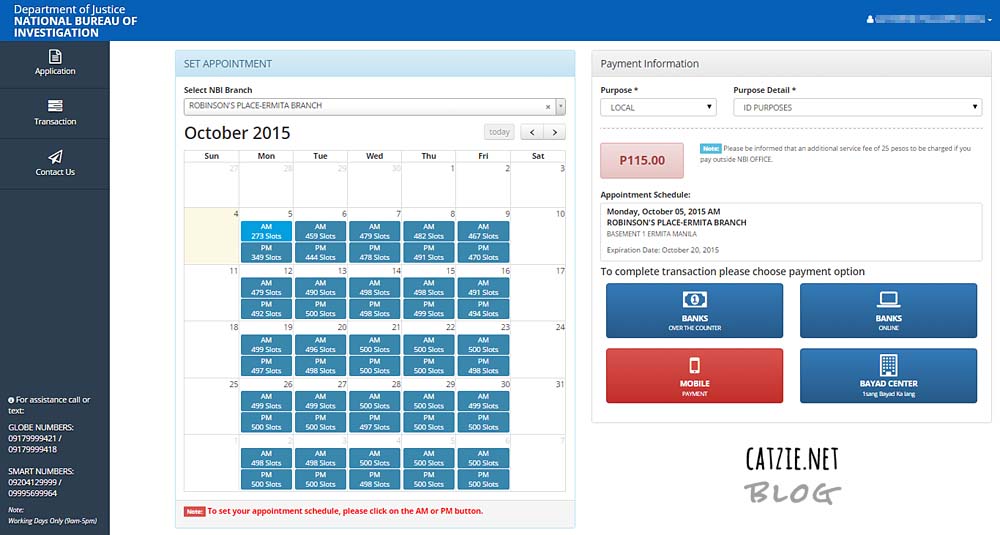
We can pay for the NBI Clearance outside NBI Clearance centers, but we can also pay over-the-counter at NBI. Please be informed that an additional service fee of 25 pesos to be charged if you pay outside NBI OFFICE. Of course most people won’t choose to pay right there at NBI to avoid long lines. There are many options for payment, such as over-the-counter bank deposit, online bank deposit, Globe G-Cash (if system is up), or any Bayad Center.
When you click on the payment method of your choice (in my case, “BANKS ONLINE”), NBI Clearance website reminds us this:
A REMINDER
Once you click PROCEED TO PAYMENT here are the next steps:
A payment page will open. Select preferred ONLINE BANKING OPTION then follow instruction.
You will be provided a REFERENCE NUMBER.
Pay your fee to the selected Payment Channel using your REFERENCE NUMBER.
Go to TRANSACTION PAGE and print Application Form.
Bring Application Form to NBI Center for photo image and fingerprint capture.
It’s time to click “Proceed to Payment” button.
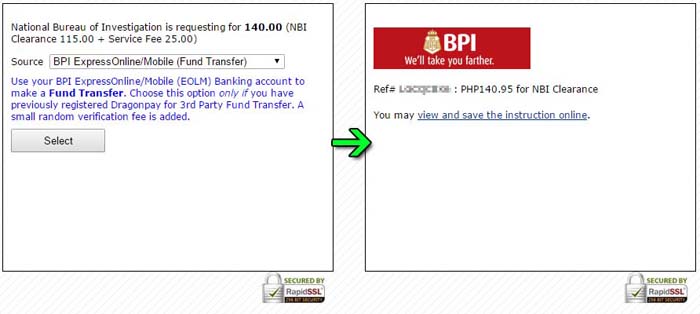
I don’t know which payment center is most convenient to you, but I’ll give you an example on how you can pay via BPI Express Online.
The following screenshots shows you the payment gateway they use. If you want to use a BPI Express Online account, your transaction may look like this:
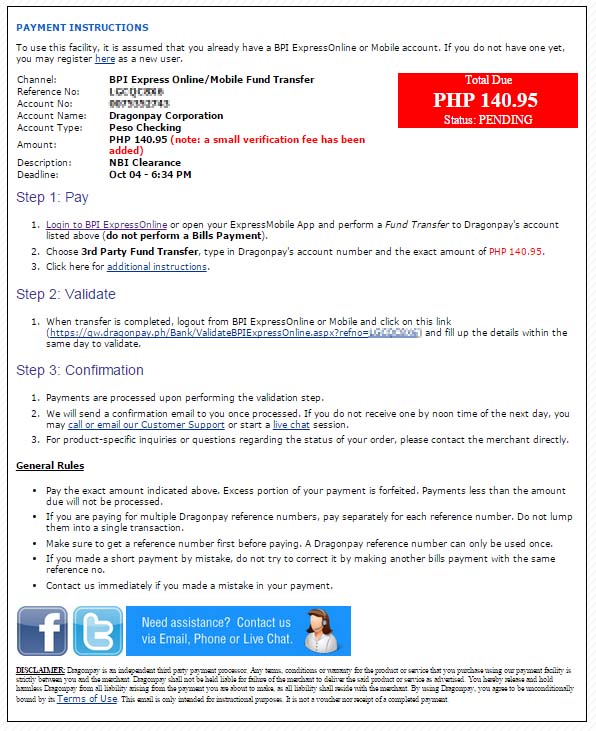
Following screenshot shows Payment Instructions for BPI ExpressOnline or Mobile account:
You will use the reference number that NBI’s system gave you as you do Fund Transfer via BPI Express Online.
A message from the NBI Clearance site after payment process:
Thank you for using NBI ONLINE APPLICATION SYSTEM!
To see the status of your REFERENCE NUMBER and application please go to TRANSACTION PAGE.
If you need more assistance please feel free to contact or text:
GLOBE NUMBERS:
09179999421 / 09179999418
SMART NUMBERS:
09204129999 / 09995699964
Or send an email using CONTACT US PAGE.
Now, make sure you have paid for your NBI Clearance through the method of your choice. Track your transaction status by visiting the Transaction page.
And of course, don’t forget about your NBI Clearance REFERENCE NUMBER and 2 Valid IDs on your appointment date!
NBI Clearance Application in June 2013 Ever Gotesco Mall Recto
Let me share with you my experience in getting an NBI Clearance this year 2013.
I paid via GCash and entered my details online at NBI-Online.com before booking a schedule and going to the NBI Clearance Center at Ever Gotesco Mall, Recto.