Life involves a lot of problem solving. Today, my first one was this: I had forgotten the username and password for one of my GitHub repos, and my current Mac had no SSH keys set up. I don’t regularly work on this repo (an Android app), and I’ve changed devices since I was last active on this project.
Tested on: a Mac running a macOS version Tahoe 26.6.2 using an ed25519 key.
Quick answer: how to fix “Authentication failed” on git push by using SSH keys
A TL;DR for fellow impatient people. 🤪
If git push fails with “Authentication failed” and your Mac has no SSH keys, create an ed25519 key with ssh-keygen, add it to the SSH agent, and add the public key to your GitHub account under Settings → SSH and GPG keys. Then, remember to change your repo’s remote URL from HTTPS to SSH with git remote set-url!
Step-by-step quick guide:
- Check for existing SSH keys with
ls -al ~/.ssh. - Create a new key with
ssh-keygen -t ed25519 -C "[email protected]". - Start the SSH agent with
eval "$(ssh-agent -s)". - Create
~/.ssh/configso macOS loads your key automatically. - Add the key to the agent with
ssh-add --apple-use-keychain ~/.ssh/id_ed25519. - Copy your public key with
pbcopy < ~/.ssh/id_ed25519.pub. - Paste the public key into GitHub (Settings → SSH and GPG keys).
- Test the connection with
ssh -T [email protected]. - Switch your repo’s remote to the SSH URL with
git remote set-url origin [email protected]:USERNAME/REPO.git.
And for those who want to dive in to more details, read on~
The problem: git push says “Repository not found” and “Authentication failed”
I tried to push to my repo, and Git asked for a username and password I no longer remembered. Entering anything failed with the error below.
me@my-MacBook-Pro My-App % git push
Username for 'https://github.com':
Password for 'https://github.com':
remote: Repository not found.
fatal: Authentication failed for 'https://github.com/catzie/My-App.git/'
Since I had no SSH keys on this device, it was time to set them up.
Step-by-step: set up SSH keys for GitHub on a Mac
Step 1: Check for existing SSH keys
First, I checked whether any keys already existed on my Mac:
ls -al ~/.sshIt found nothing, so I went ahead and created one.
Step 2: Generate a new ed25519 SSH key
I created a new SSH key with this command (replace the email with your own):
ssh-keygen -t ed25519 -C "[email protected]"Here is the response I got from the terminal. It asks where to save the key and for an optional passphrase (you can leave it empty for no passphrase).
Generating public/private ed25519 key pair.
Enter file in which to save the key (/Users/me/.ssh/id_ed25519):
Created directory '/Users/me/.ssh'.
Enter passphrase for "/Users/me/.ssh/id_ed25519" (empty for no passphrase):
Enter same passphrase again:
Your identification has been saved in /Users/me/.ssh/id_ed25519
Your public key has been saved in /Users/me/.ssh/id_ed25519.pub
The key fingerprint is:
SHA256:gca01y4Nhsp3ZhFrUnY8ty6VPQiNjBEIt7IVbnFqdx4 [email protected]
The key's randomart image is:
+--[ED25519 256]--+
|    ..=.B*.o     |
|     =.%.=* o    |
|    . # X E+ =   |
|   . O * O .= o  |
|    + . S +o   . |
|     . + .. .    |
|           .     |
|                 |
|                 |
+----[SHA256]-----+
Step 3: Start the SSH agent
Next, I started the SSH agent:
eval "$(ssh-agent -s)"This showed me Agent pid 1234. The number at the end will vary.
Step 4: Create the SSH config file (macOS newer than Sierra 10.12.2)
Since I use a macOS version newer than Sierra 10.12.2, I had to edit an SSH config file. I tried to open it first:
open ~/.ssh/configThe file /Users/me/.ssh/config does not exist.As you can see, the terminal told me the file doesn’t exist yet. I habitually use vim to quickly edit text files in the terminal, and to create nonexistent ones:
vim ~/.ssh/configThis opens a blank text file named “config” located at ~/.ssh/.
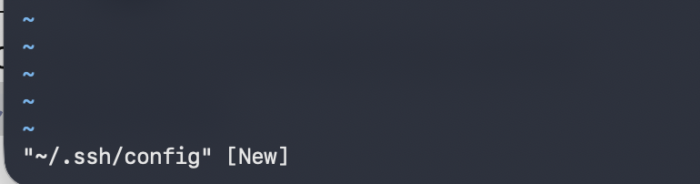
I pressed the i key to enter vim’s INSERT mode, and then pasted the following text:
Host github.com
AddKeysToAgent yes
UseKeychain yes
IdentityFile ~/.ssh/id_ed25519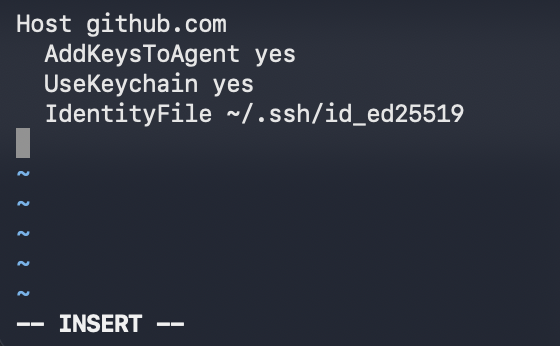
Trivia: what does the ~ in ~/.ssh/id_ed25519 mean?
In Mac and Linux terminals, the ~ symbol automatically translates to your user’s home directory, which on a Mac is usually /Users/YourUsername. If your Mac username is me, the terminal reads ~/.ssh/id_ed25519 and expands it to /Users/me/.ssh/id_ed25519 behind the scenes.
Note: if you chose not to use a passphrase, you may omit the UseKeychain line from the config.
If you see a “Bad configuration option: usekeychain” error, add an IgnoreUnknown UseKeychain line to the same Host github.com section of the config, above the UseKeychain line:
Host github.com
IgnoreUnknown UseKeychain
AddKeysToAgent yes
UseKeychain yes
IdentityFile ~/.ssh/id_ed25519
To save the config file and exit vim, I pressed the Escape key, typed :wq!, and pressed Enter.
Step 5: Add your SSH key to the agent
Then I ran this command:
ssh-add --apple-use-keychain ~/.ssh/id_ed25519Note: omit --apple-use-keychain if you didn’t set a passphrase.
The terminal responded with:
Identity added: /Users/me/.ssh/id_ed25519 ([email protected])Step 6: Copy your public key
Now it’s time to add the key to my GitHub account! I copied the contents of my public key file (~/.ssh/id_ed25519.pub) to my clipboard with this command:
pbcopy < ~/.ssh/id_ed25519.pubStep 7: Add the public key to your GitHub account
In my web browser, I went to github.com and navigated to Settings → SSH and GPG keys. I entered the title I wanted to label this key with, and selected Authentication Key as the key type. For the key itself, paste the contents of the local ~/.ssh/id_ed25519.pub file from your machine.
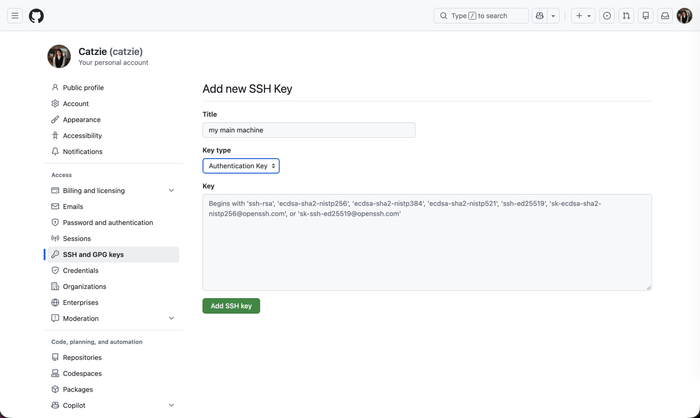
Step 8: Test your SSH connection to GitHub
After setting up the key with GitHub, I tested the SSH connection:
ssh -T [email protected]It worked! The screenshot below shows the response I got. Note that every user connecting to GitHub.com via SSH using ED25519 sees that exact same fingerprint: SHA256:+DiY3wvvV6TuJJhbpZisF/zLDA0zPMSvHdkr4UvCOqU.

Step 9: Switch your Git remote from HTTPS to SSH
Time to test on the real thing: pushing my new Android app commits. But Git still prompted me for a username and password!
This is because my Git remotes were still pointing to HTTPS URLs instead of SSH. I confirmed it with:
git remote -v
origin  https://github.com/catzie/My-App.git (fetch)
origin  https://github.com/catzie/My-App.git (push)
I visited my repo page on GitHub to get the SSH URL, which looks like [email protected]:catzie/My-App.git, and then updated the remote URL:
git remote set-url origin [email protected]:catzie/My-App.gitRunning git remote -v again showed the remotes now use SSH:
git remote -v
origin  [email protected]:catzie/My-App.git (fetch)
origin  [email protected]:catzie/My-App.git (push)
Finally, I ran git push again within my Android Studio project and it successfully did as told. 😎 This is because the git remote is now pointing to the SSH URL, and should authenticate with the SSH key instead of prompting me again for username and password (which I already remembered! But not willing to type over and over again!)
Common problems and fixes
| Problem | Cause | Fix |
|---|---|---|
git push shows “Repository not found” and “Authentication failed” | Forgotten GitHub credentials and no SSH keys set up on this device | Follow steps 1 to 9 above to set up an SSH key |
git push still asks for a username and password after adding the SSH key | The Git remote still points to an HTTPS URL | Run git remote set-url origin [email protected]:USERNAME/REPO.git (step 9) |
| “Bad configuration option: usekeychain” | The UseKeychain option isn’t recognized | Add IgnoreUnknown UseKeychain to the Host github.com section, above the UseKeychain line (step 4) |
open ~/.ssh/config says the file does not exist | The config file hasn’t been created yet | Create it with vim ~/.ssh/config (step 4) |
| No passphrase set on the key | The keychain options are only needed for passphrases | Omit the UseKeychain config line and the --apple-use-keychain flag |
Frequently asked questions
Why does git push still ask for my username and password after I set up an SSH key?
Your Git remote is probably still using an HTTPS URL. Run git remote -v to check. If it shows https://github.com/..., switch it to the SSH URL with git remote set-url origin [email protected]:USERNAME/REPO.git.
How do I check if I already have SSH keys on my Mac?
Run ls -al ~/.ssh in the terminal. On my Mac it found nothing, which is how I knew I needed to create a new key.
Do I need a passphrase for my GitHub SSH key?
The ssh-keygen prompt lets you leave the passphrase empty. If you choose no passphrase, you can omit the UseKeychain line from your ~/.ssh/config and the --apple-use-keychain flag from ssh-add.
How do I test my SSH connection to GitHub?
Run ssh -T [email protected] after adding your public key to your GitHub account. Every user connecting to GitHub.com over SSH with ED25519 sees the same fingerprint, SHA256:+DiY3wvvV6TuJJhbpZisF/zLDA0zPMSvHdkr4UvCOqU.
How do I fix the “Bad configuration option: usekeychain” error?
Add the line IgnoreUnknown UseKeychain to the Host github.com section of ~/.ssh/config, above the UseKeychain line.
Which macOS versions need the SSH config file?
I needed it because I use a macOS version newer than Sierra 10.12.2. The config file tells SSH to add your key to the agent automatically, to use the keychain, and which identity file to use for github.com.
Command cheat sheet
All the commands from this guide, in order. Replace the email, username, and repo name with your own.
# 1. Check for existing keys
ls -al ~/.ssh

# 2. Generate a new ed25519 key
ssh-keygen -t ed25519 -C "[email protected]"

# 3. Start the SSH agent
eval "$(ssh-agent -s)"

# 4. Create the SSH config file
vim ~/.ssh/config

# 5. Add the key to the agent (omit --apple-use-keychain if no passphrase)
ssh-add --apple-use-keychain ~/.ssh/id_ed25519

# 6. Copy the public key, then paste it into GitHub
pbcopy < ~/.ssh/id_ed25519.pub

# 7. Test the connection
ssh -T [email protected]

# 8. Switch the remote from HTTPS to SSH
git remote -v
git remote set-url origin [email protected]:USERNAME/REPO.git