Category: Android Development

  • Android: 2-dimensional List String (List of List)

    For a web developer who used mostly PHP and JavaScript for several years, plunging into Java can be challenging especially when it comes to data types.

    PHP and JavaScript are loosely typed languages, while Java is strict about types.

    I was told that in Android, List<String> is very commonly used, even more than arrays. And now I’ve come to the point when I need to use a 2-dimensional List<String>.

    Here’s a sample code:

    Output of System.outprintln(Arrays.deepToString(ls.toArray())); is this:

    The output of Log.d("serialized", listOfList.toString()); is this:

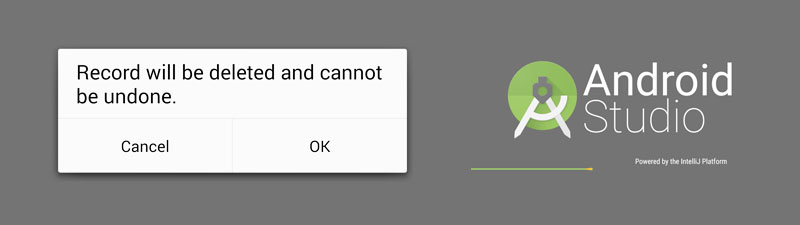
  • Android confirm dialog box with OK and Cancel button

    Android confirm dialog box with OK and Cancel button

    This will probably be one of the Android code snippets that I will need to go back to from time to time.

    I’m sharing the codes we need to show an Android confirm dialog to prompt the user to click “yes” or “no”, or in my case, “OK” or “Cancel”.

    The following code for Android confirm dialog is in my MainActivity.java file:

    (more…)

  • Android Studio dark theme (change into Darcula theme)

    Android Studio dark theme (change into Darcula theme)

    You might feel more comfortable with a dark theme in Android Studio, but the default theme is light in color.

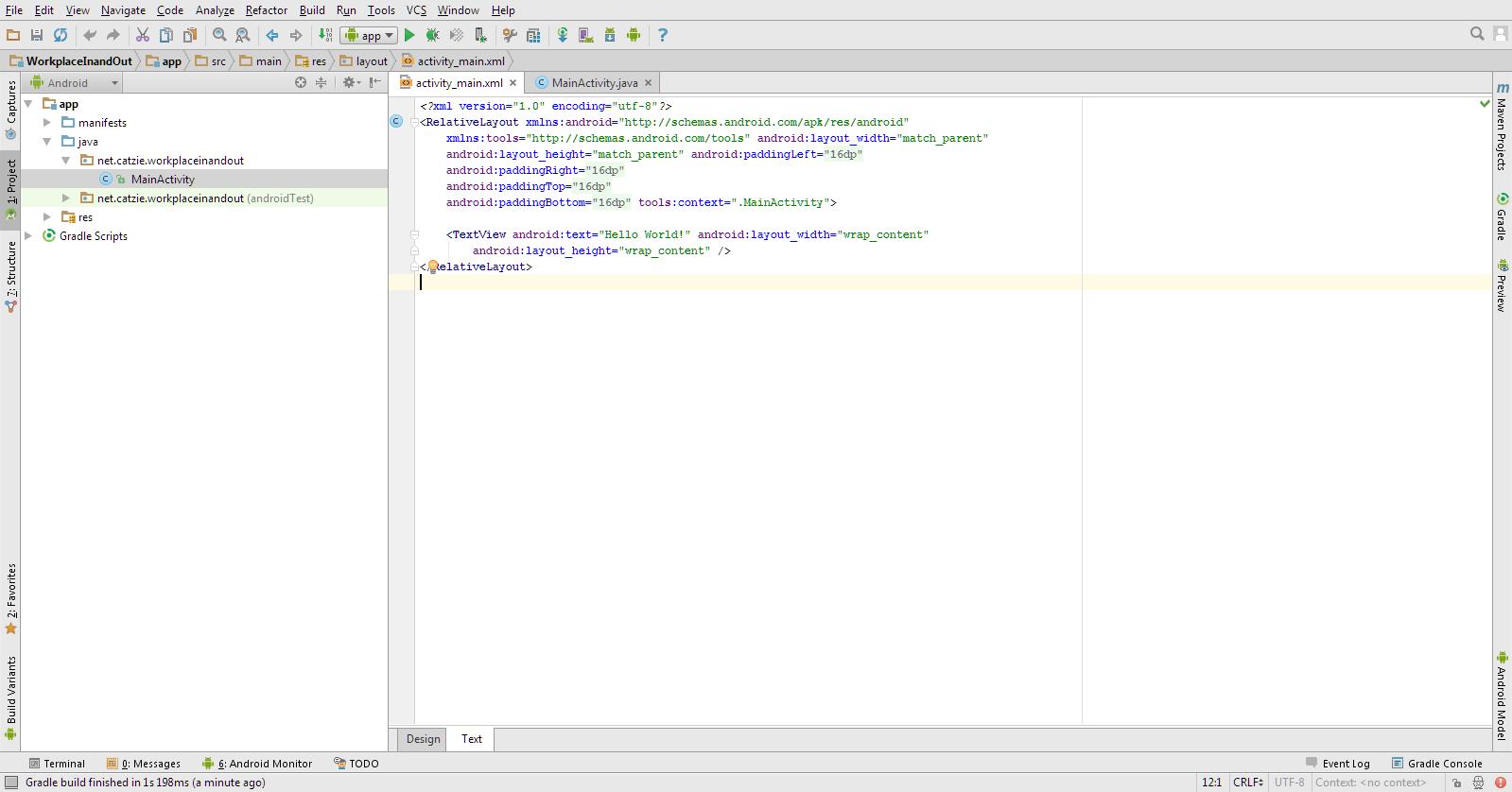
    Default light theme in Android Studio
    Default light theme in Android Studio

    I’m one of the developers who always code in dark screens since it’s less tiring to the eyes.

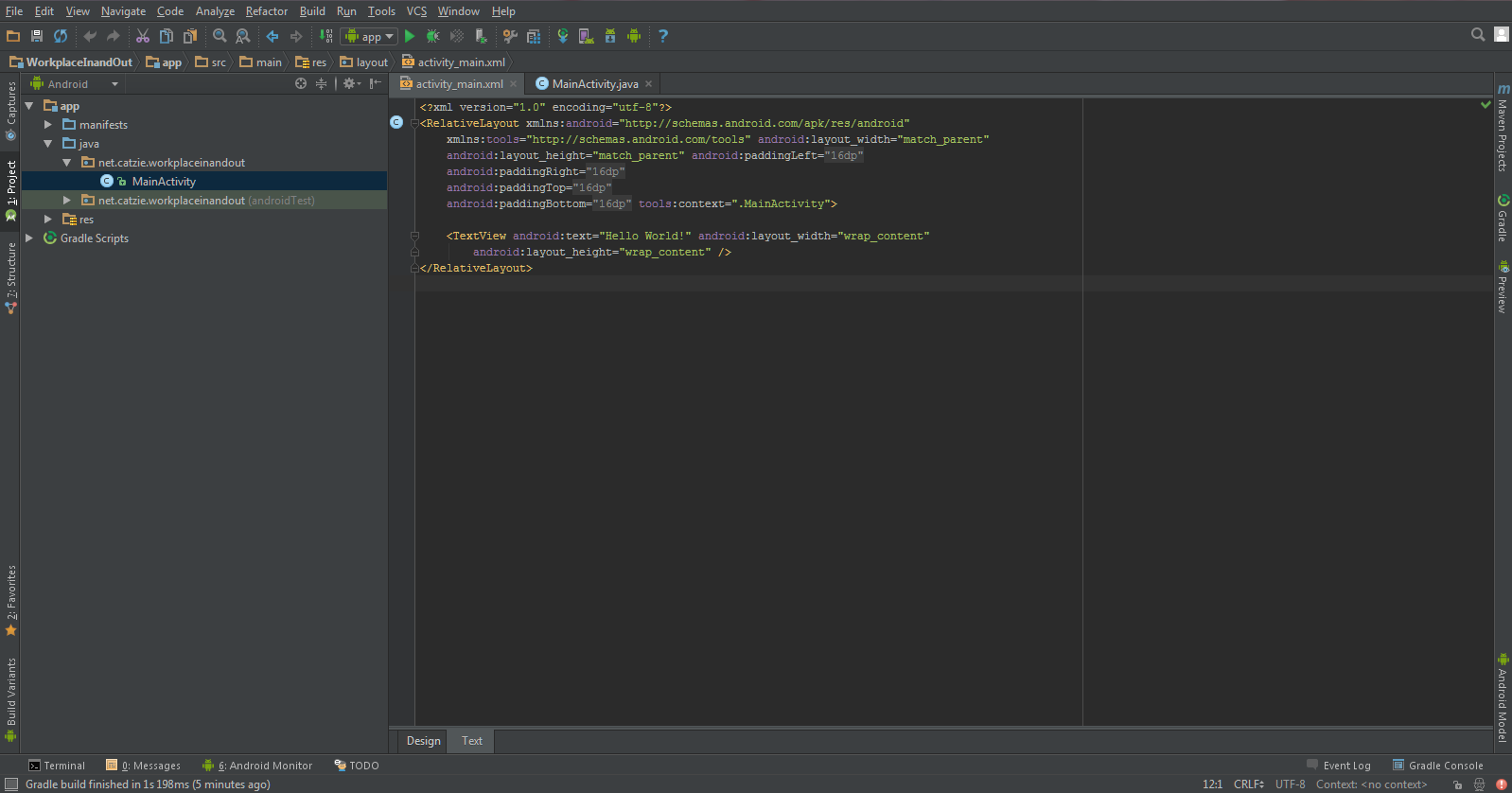
    Android Studio dark theme
    Android Studio dark theme — Darcula

    If you’re like me who prefers dark themes while coding, then I’ll show you how to change into a dark theme called Darcula in Android Studio here. (more…)

  • How to change app name in Android Studio

    How to change app name in Android Studio

    I’m trying to learn how to build a simple app in Android just to satisfy my curiosity. This will also be a very handy skill because I use Android phones often, and there are times that the apps I download from Google Play Store lack features that I need.

    This will be a very simple guide on how to change app name in Android Studio, something that most beginners in Android development probably want to know.

    It is assumed in this guide that you have prior knowledge in coding.

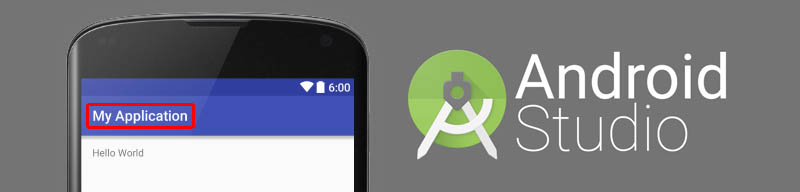
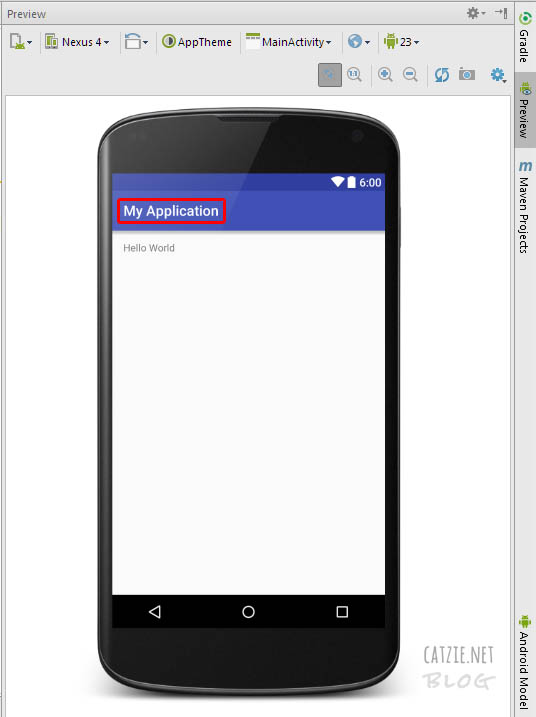
    The app name that I’m referring to is the one that says “My Application”, as marked on the image below:

    How to change app name in Android Studio

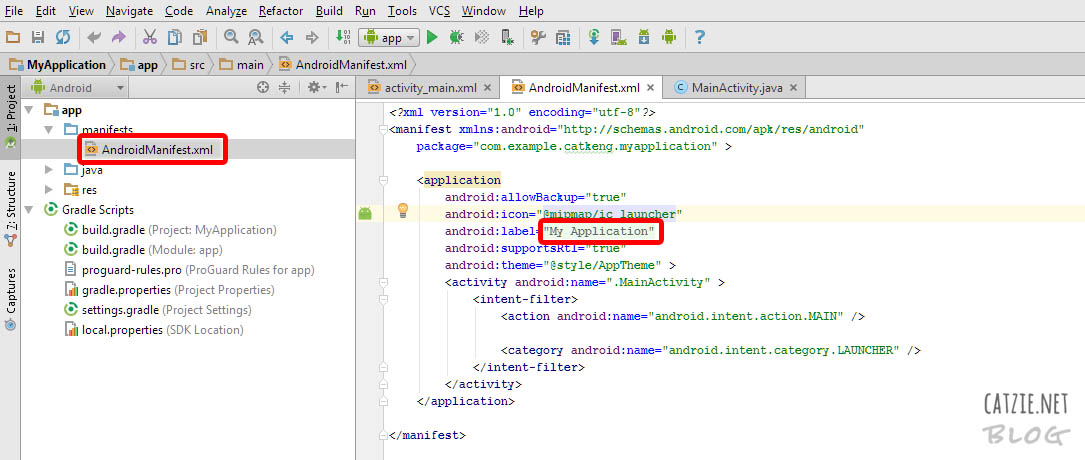
    To change that, go to your Project and find the app folder. Under app, find AndroidManifest.xml and edit android:label="My Application", replacing “My Application” with the name you’d like to use.

    Refer to the image below:

    android-studio-android-manifest

    Your changed app name should be reflected in the live preview now, if you have it activated. If you don’t have live preview yet, check this out: Where is Android Studio layout preview?

    Updates…

    How to rename project folders of Android Studio

    You may also want to change the name of your Android app’s folder. Check this folder, it’s probably where your Android project folder is located — C:\Users\catkeng\AndroidStudioProjects\

    How to rename package in Android Studio

    Right-click on your package name in the Project tree. It’s probably under app->java. Then choose “Refactor”, then choose “Rename”. Take note that you’ll see “Rename package” and “Rename folders” button here — you might need to go back to this screen later to click “Rename folders”. For now, click the “Rename package” button. Type the new name that you want to use, then click “Refactor”. If that hasn’t changed all package name instances for you, follow the same steps until you can click “Rename folders” button too. That should do it!